Member permission management
This page explains how to view and configure fleet access and team membership for users who have already joined an organization.
To invite new members or change organization roles, first read organization and member management. To assign the same permissions to a group, use team management.
Member overview
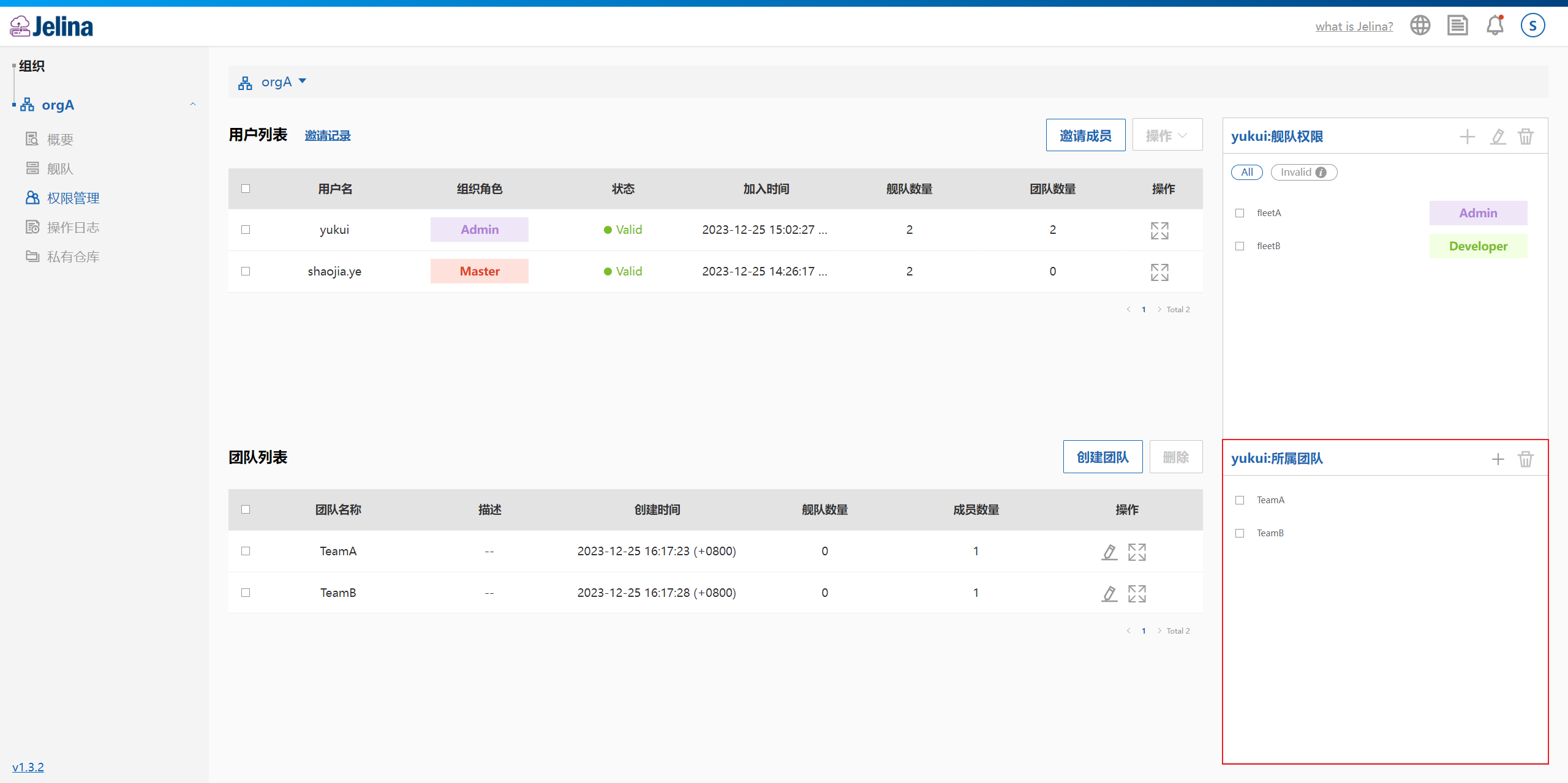
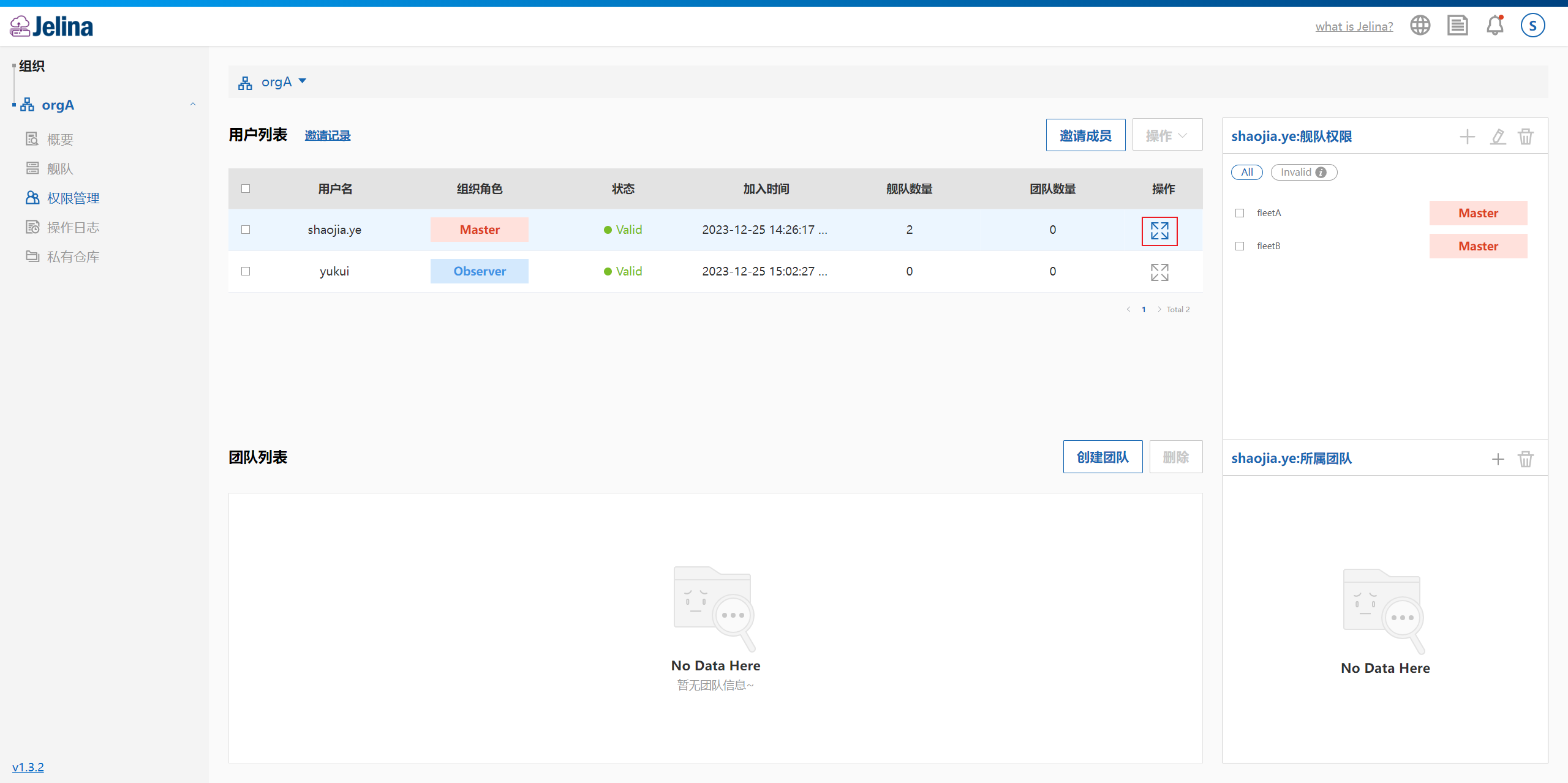
Section titled “Member overview”Open organization permission management → select a member → select the expand button on the right.
View which fleets the member can manage and which teams they belong to.
Add fleet access permissions
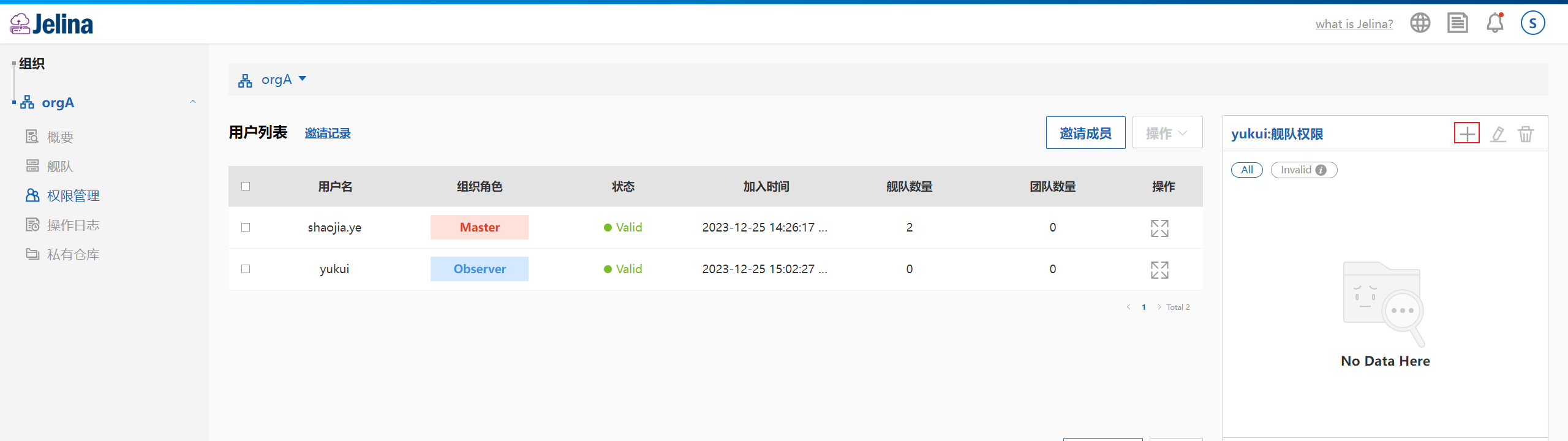
Section titled “Add fleet access permissions”Select a user and expand their details. Add fleet permissions in the user’s fleet permissions workspace.
Select +.
Select a fleet and access role, then select Add.
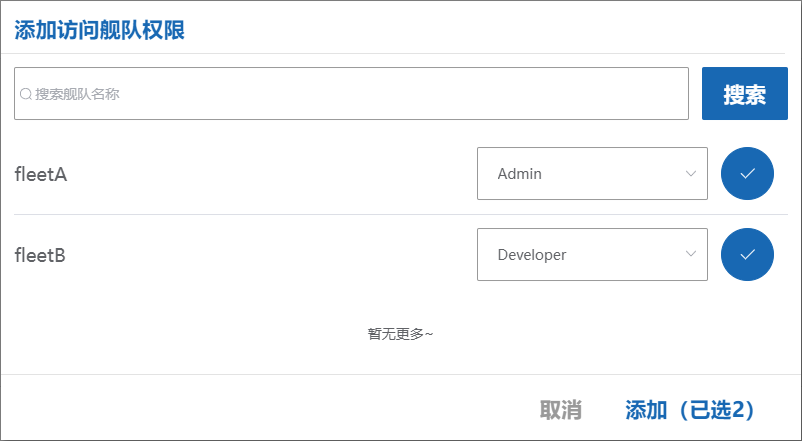
The new fleet appears in the fleet permissions list.
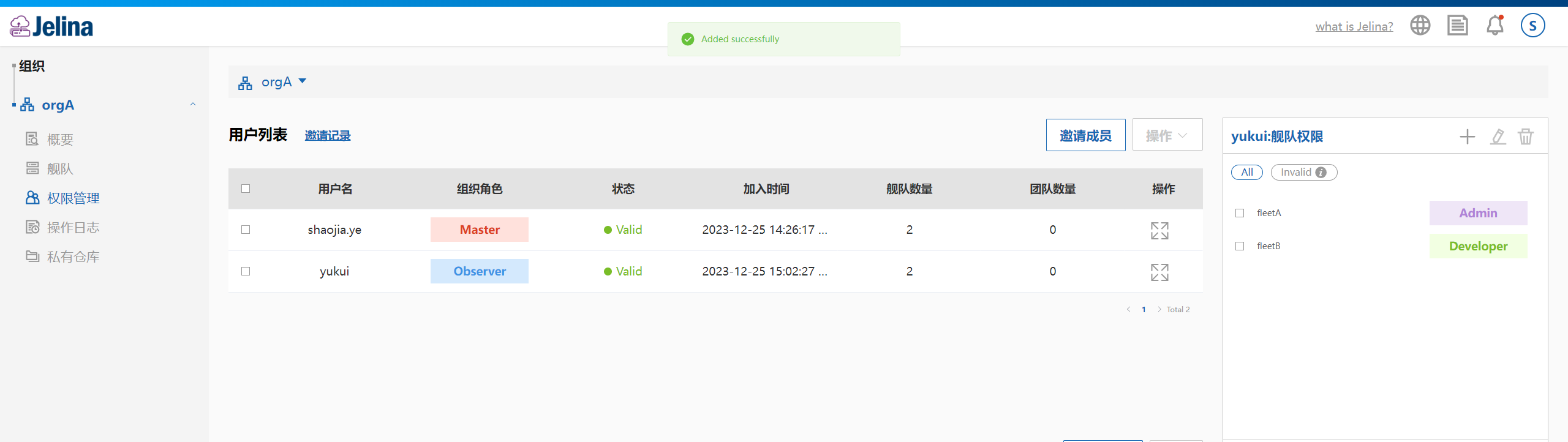
Ineffective fleet permissions:
A member’s organization role applies to every fleet in the organization. If an assigned fleet role is no higher than their organization role, the higher organization permissions take precedence; the configured fleet role has no effect.
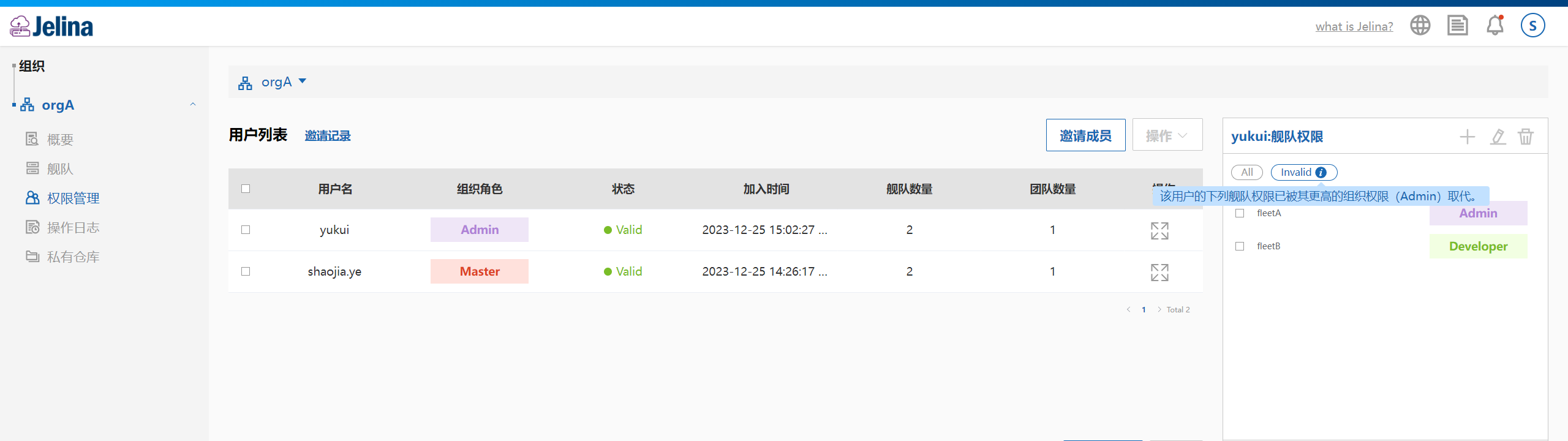
Add a member to teams
Section titled “Add a member to teams”In the user’s team list workspace, select +.
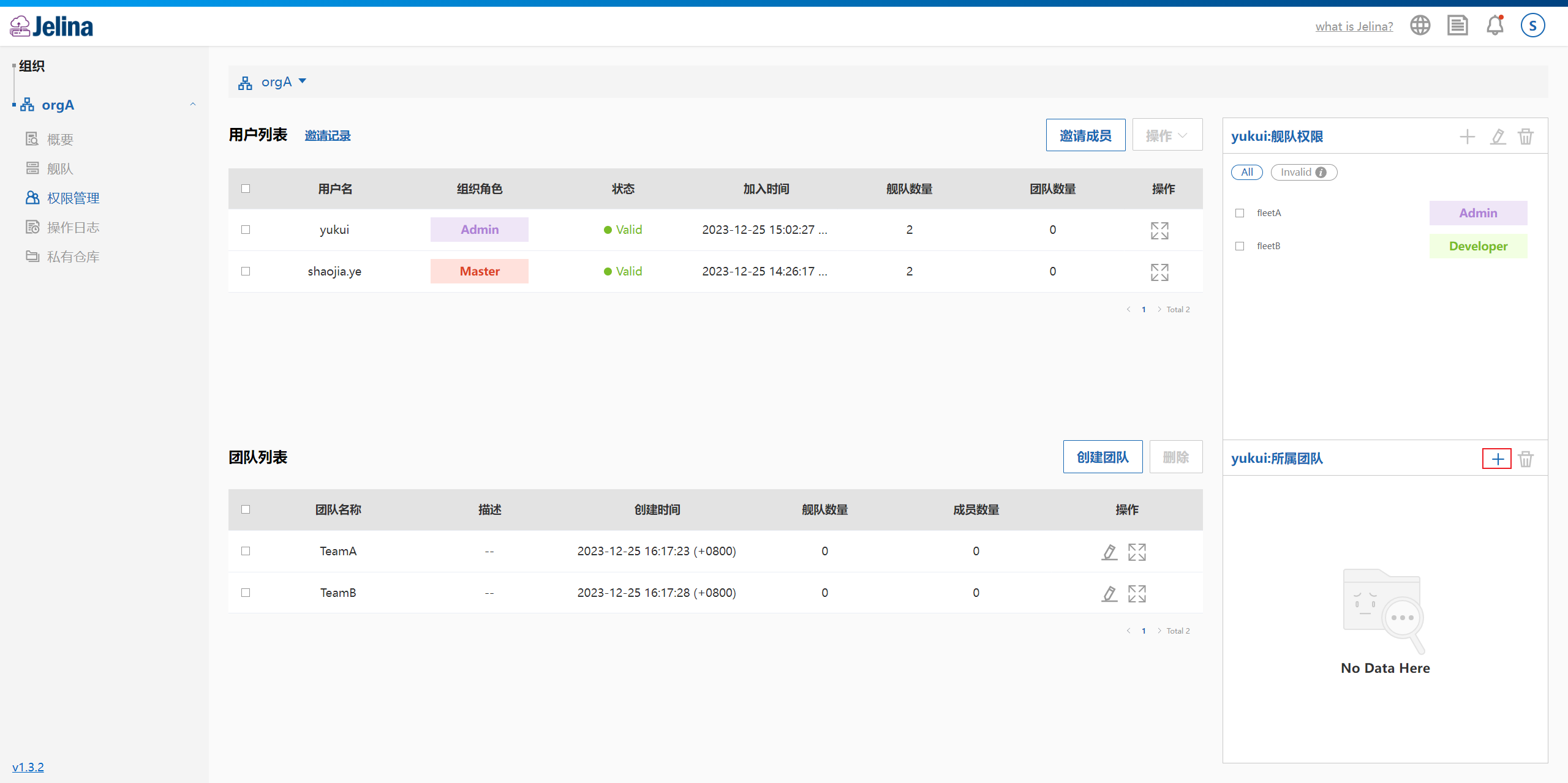
Select the teams the member should join.
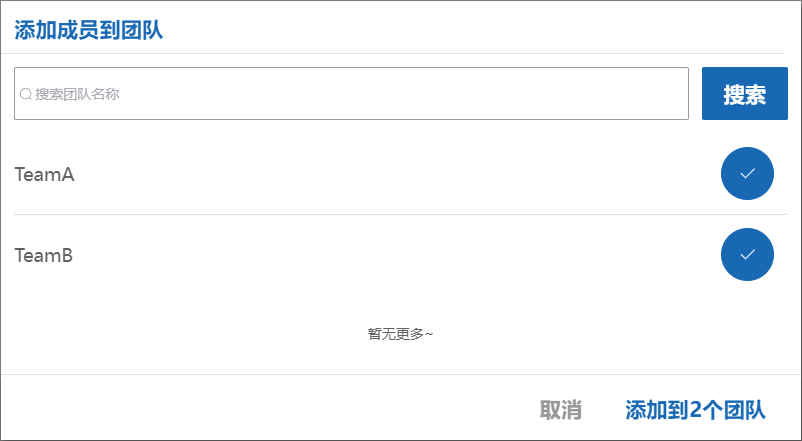
Select Add to add the member to multiple teams.