
Fleet management
Create a fleet
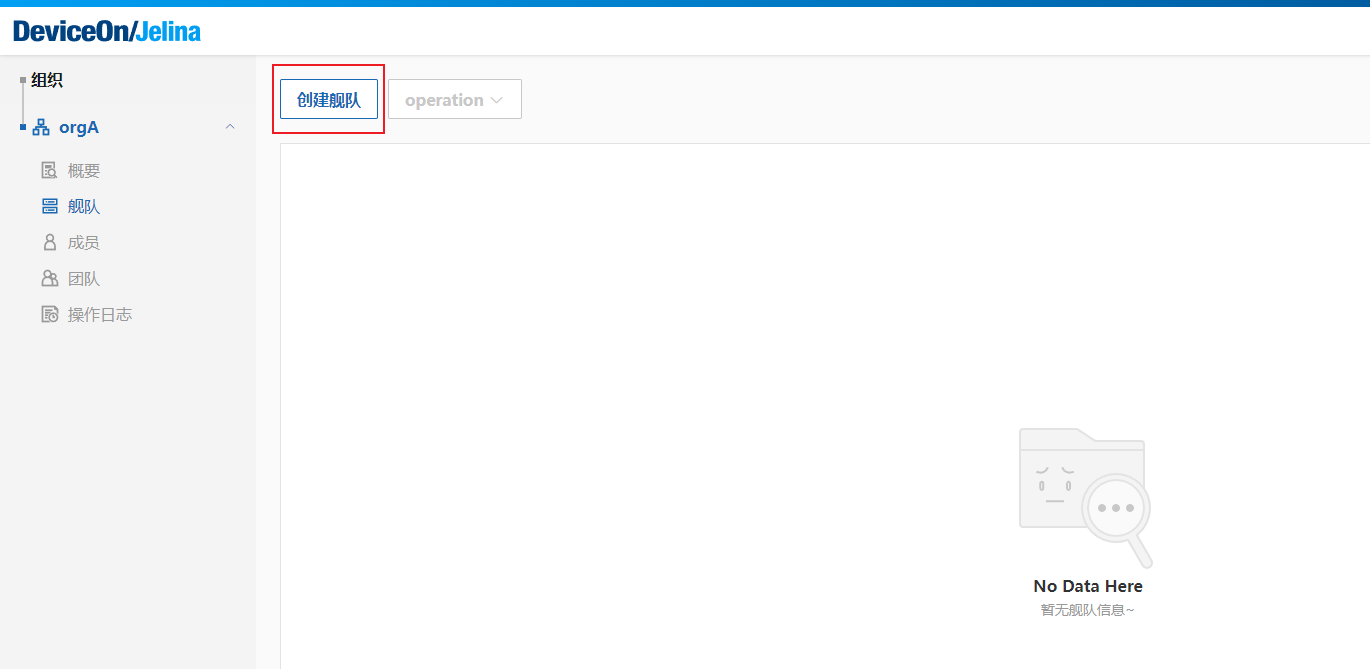
Section titled “Create a fleet”Open the organization’s fleet list and select Create fleet.
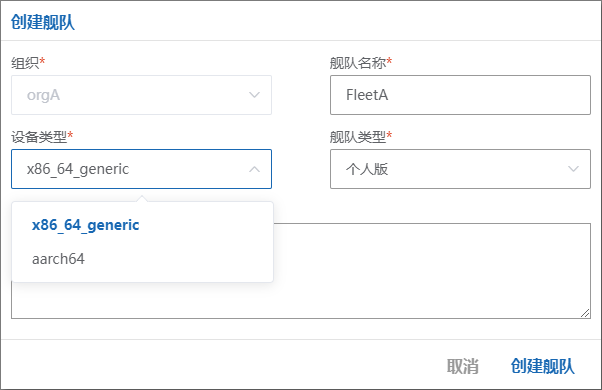
Enter a fleet name of up to 64 characters, select the default device type, optionally add a description of up to 200 characters, and select Create.
Note: The fleet device type indicates which type should be added; Jelina does not enforce it. If a fleet contains different device types, OS and kernel updates may be affected for some devices.
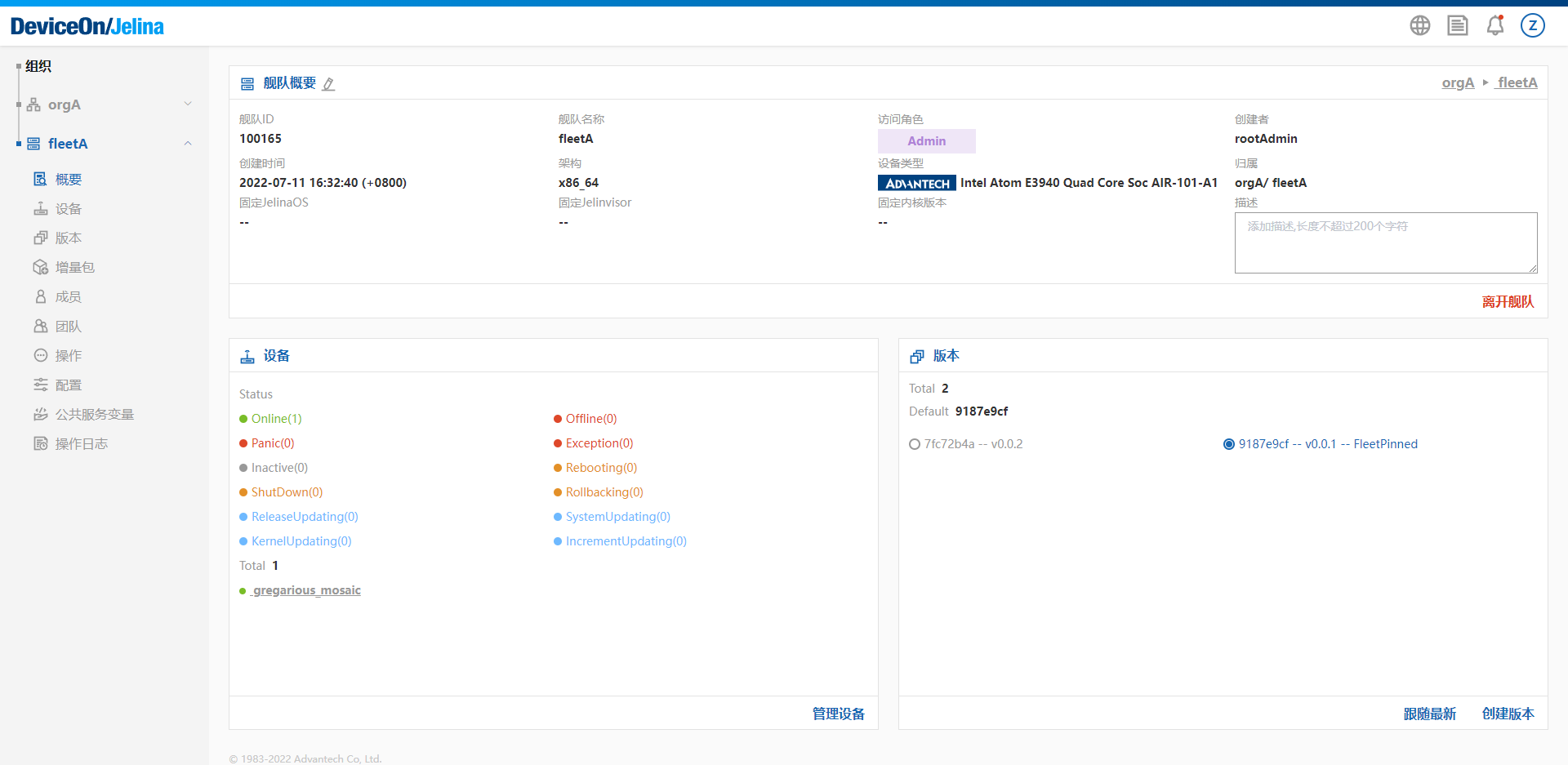
After creation, add devices, deploy applications, and configure runtime policies. See fleet configuration.
Fleet overview
Section titled “Fleet overview”The overview displays fleet resources, including fleet information, device information, and releases.
Add organization members
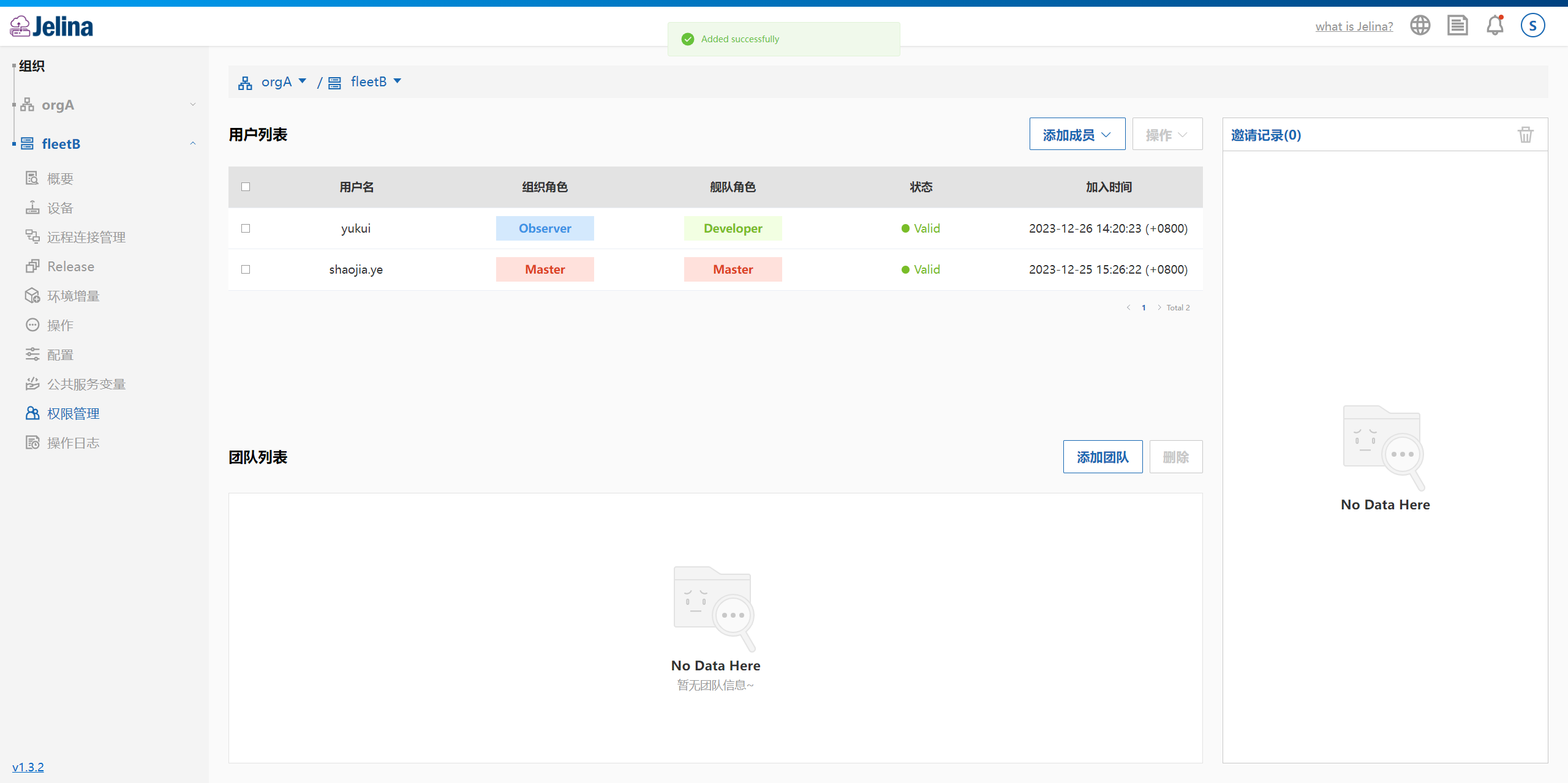
Section titled “Add organization members”Open fleet permission management and select Add member → Add organization member. Fleet Master or Admin permissions are required.
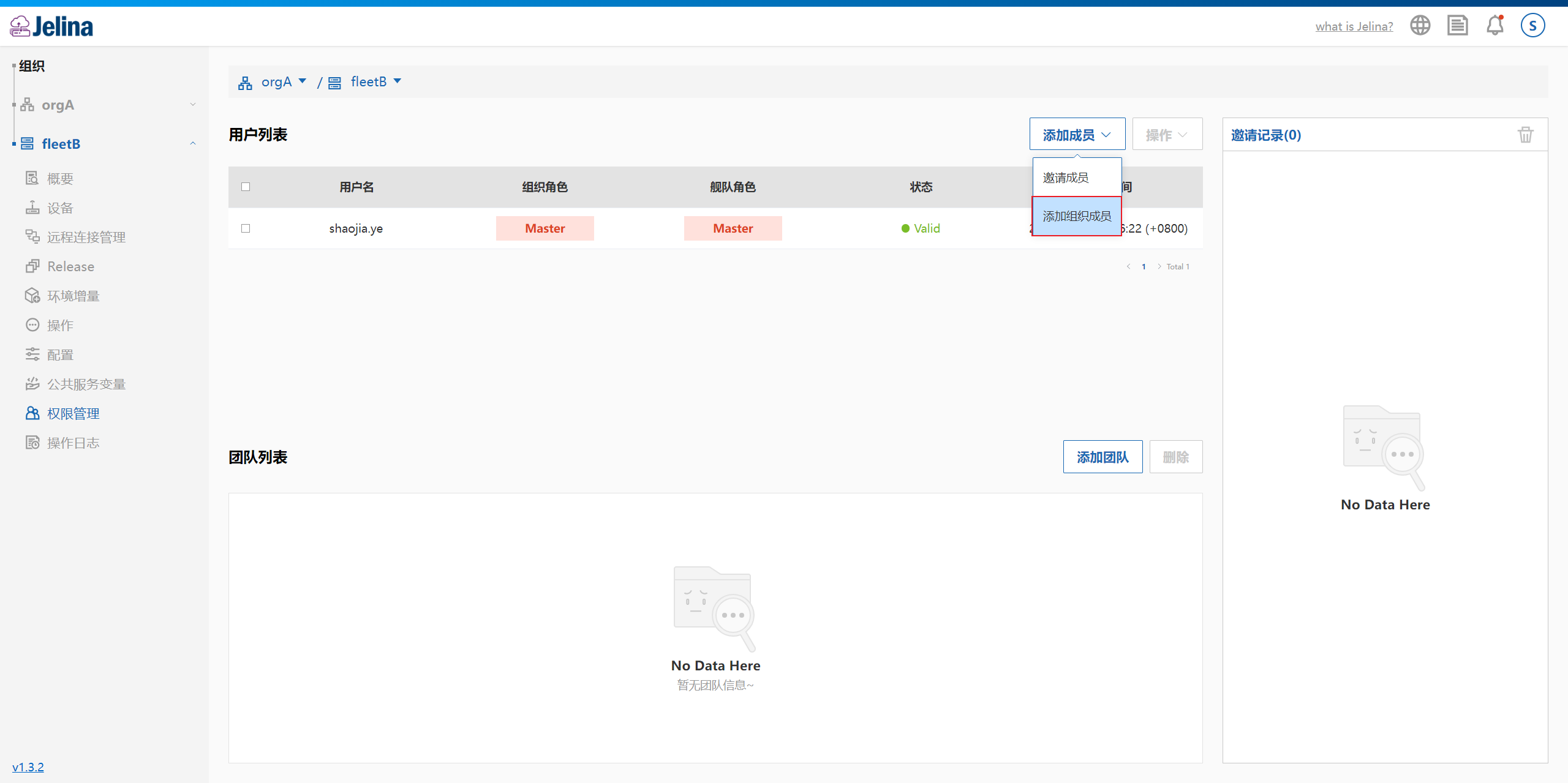
Select members, choose their fleet management roles, and select Add.
Only members with organization roles below Admin appear in this list.
Organization Admins and Masters already have the highest fleet permissions and do not need an additional fleet management role.
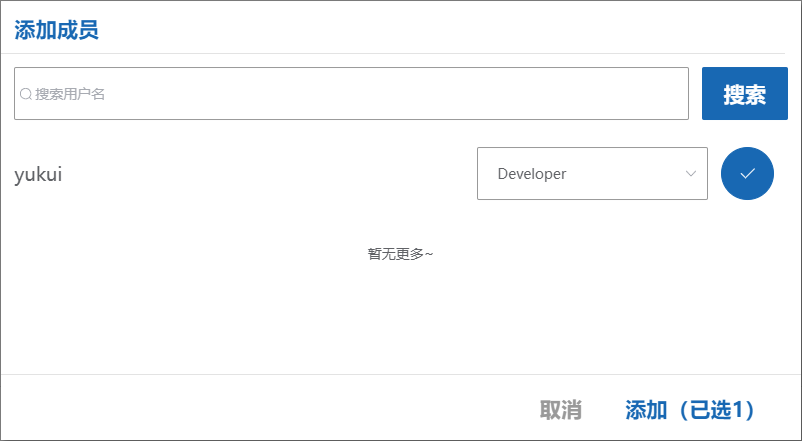
The added members appear in the member list.
Invite fleet members
Section titled “Invite fleet members”JelinaCloud supports inviting users who are not yet organization members directly into a fleet.
Such users automatically join the fleet’s organization as Members. They can access the organization and the invited fleet, but not other fleets.
Open fleet permission management and select Add member → Invite member. Fleet Master or Admin permissions are required.
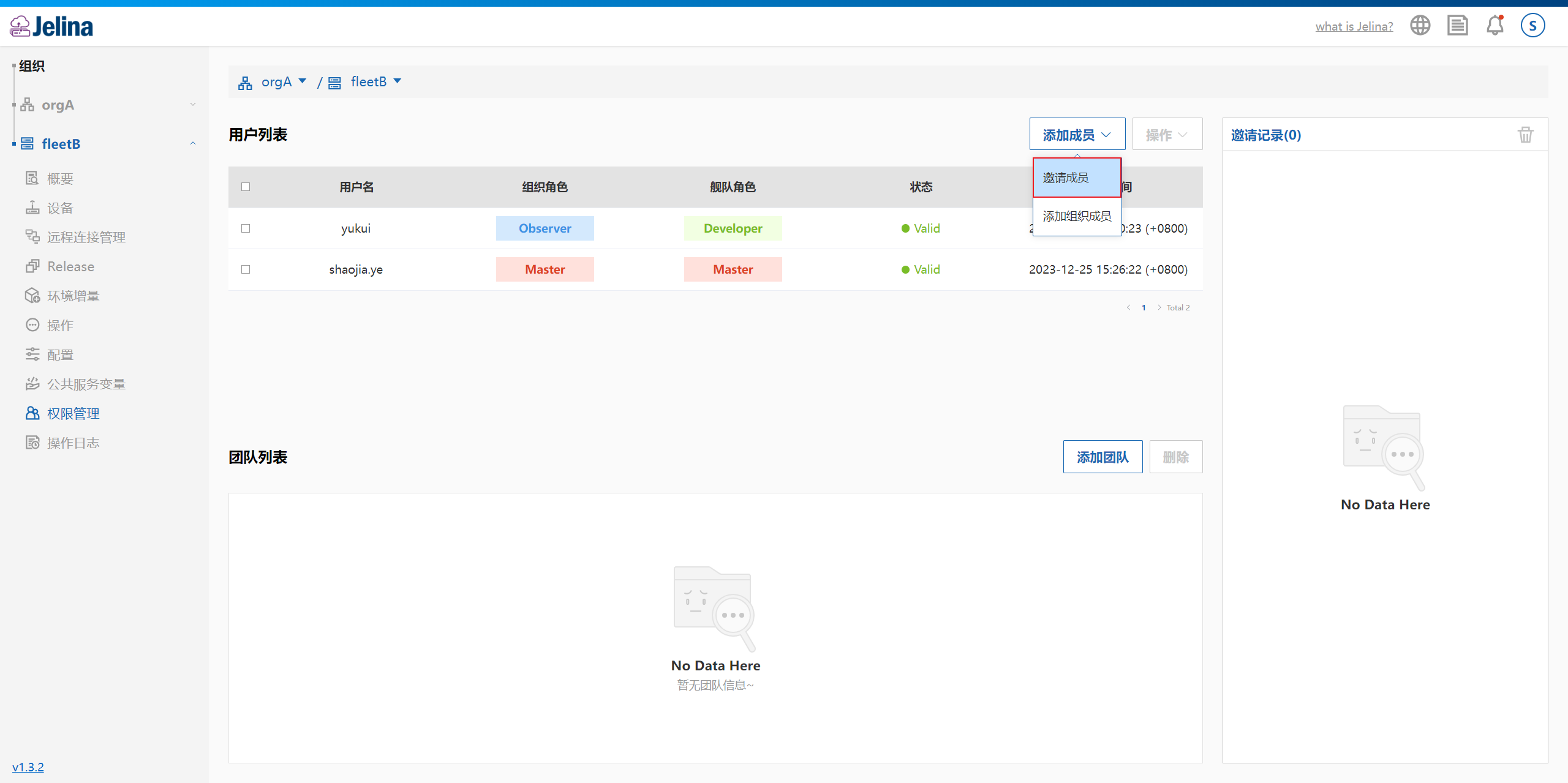
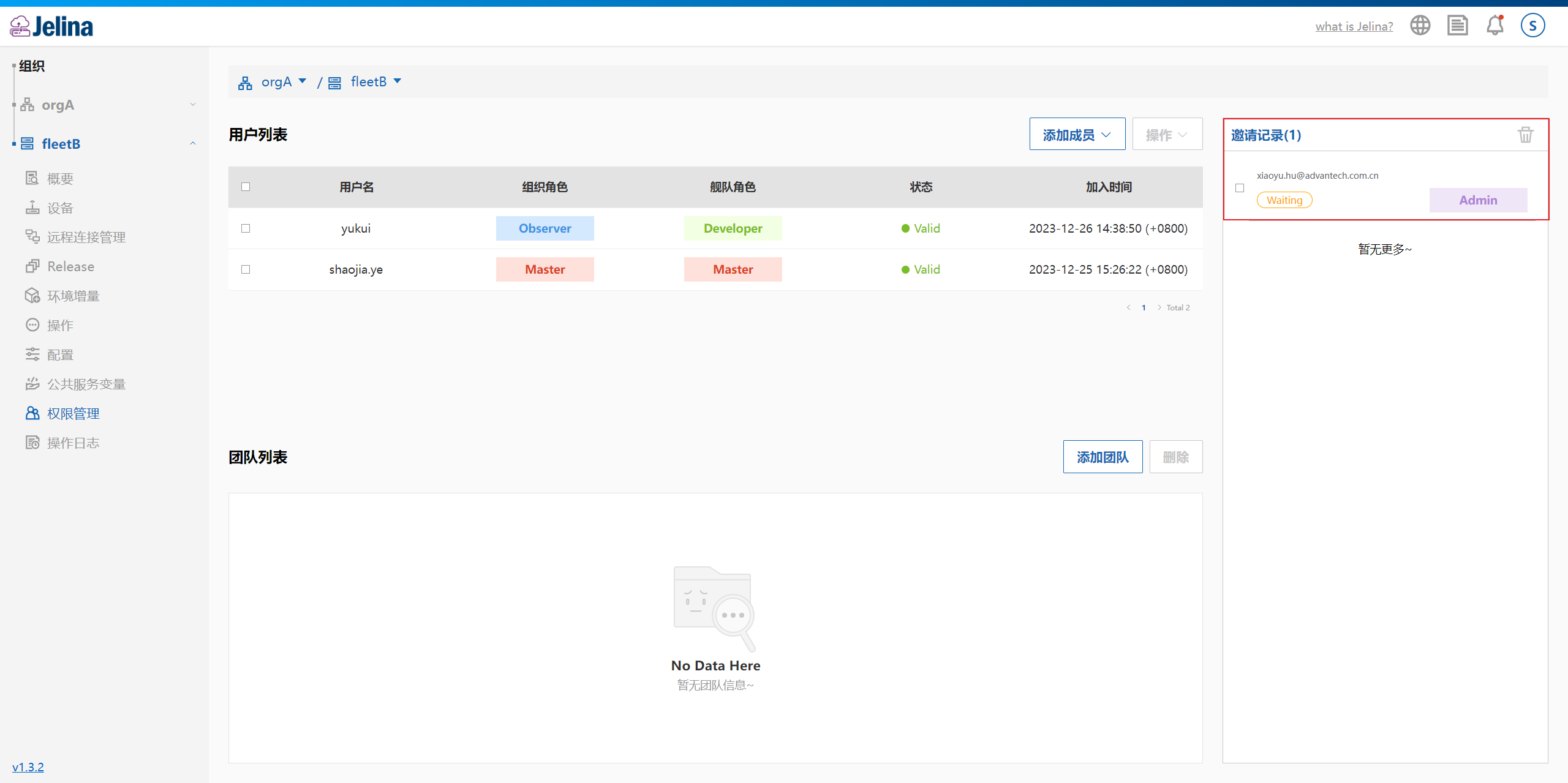
Enter the user’s email address, select a fleet access role, and select Invite member.
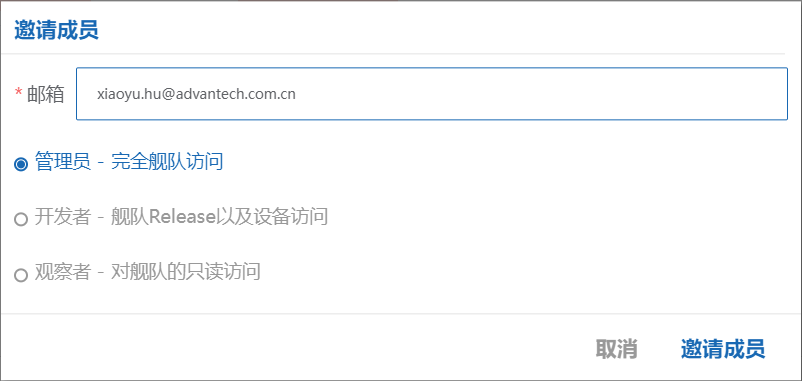
The invitation appears in the invitation records list.
For validity periods, record statuses, and common questions, see the FAQ.
Accept a fleet invitation
Section titled “Accept a fleet invitation”Follow the same steps as accepting an organization invitation.
Edit fleet member roles
Section titled “Edit fleet member roles”Open fleet permission management, select the user, and select Edit.
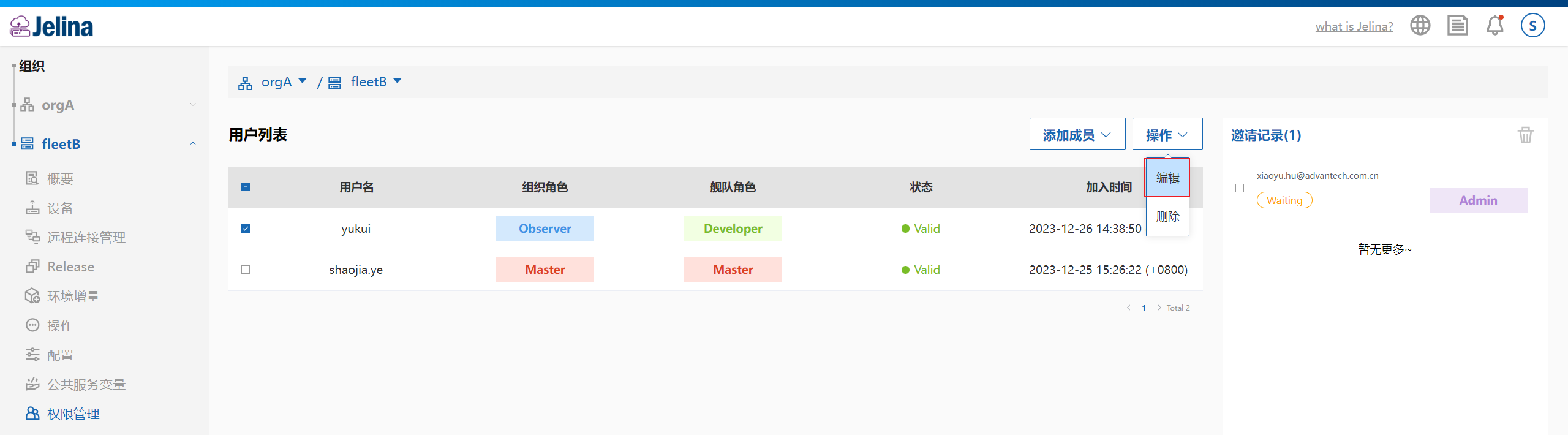
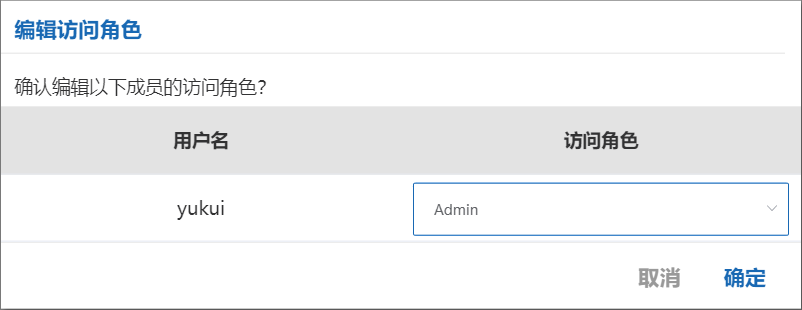
Choose the new access role. This does not affect the member’s organization role.
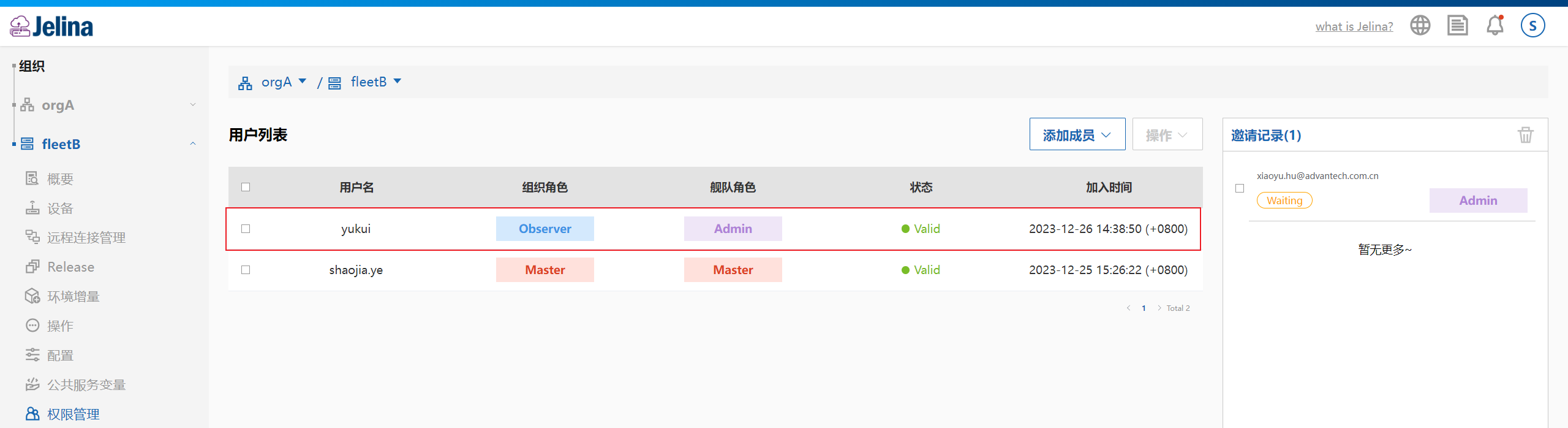
The updated role appears in the list.
Add team access roles
Section titled “Add team access roles”Open fleet permission management and select Add team.
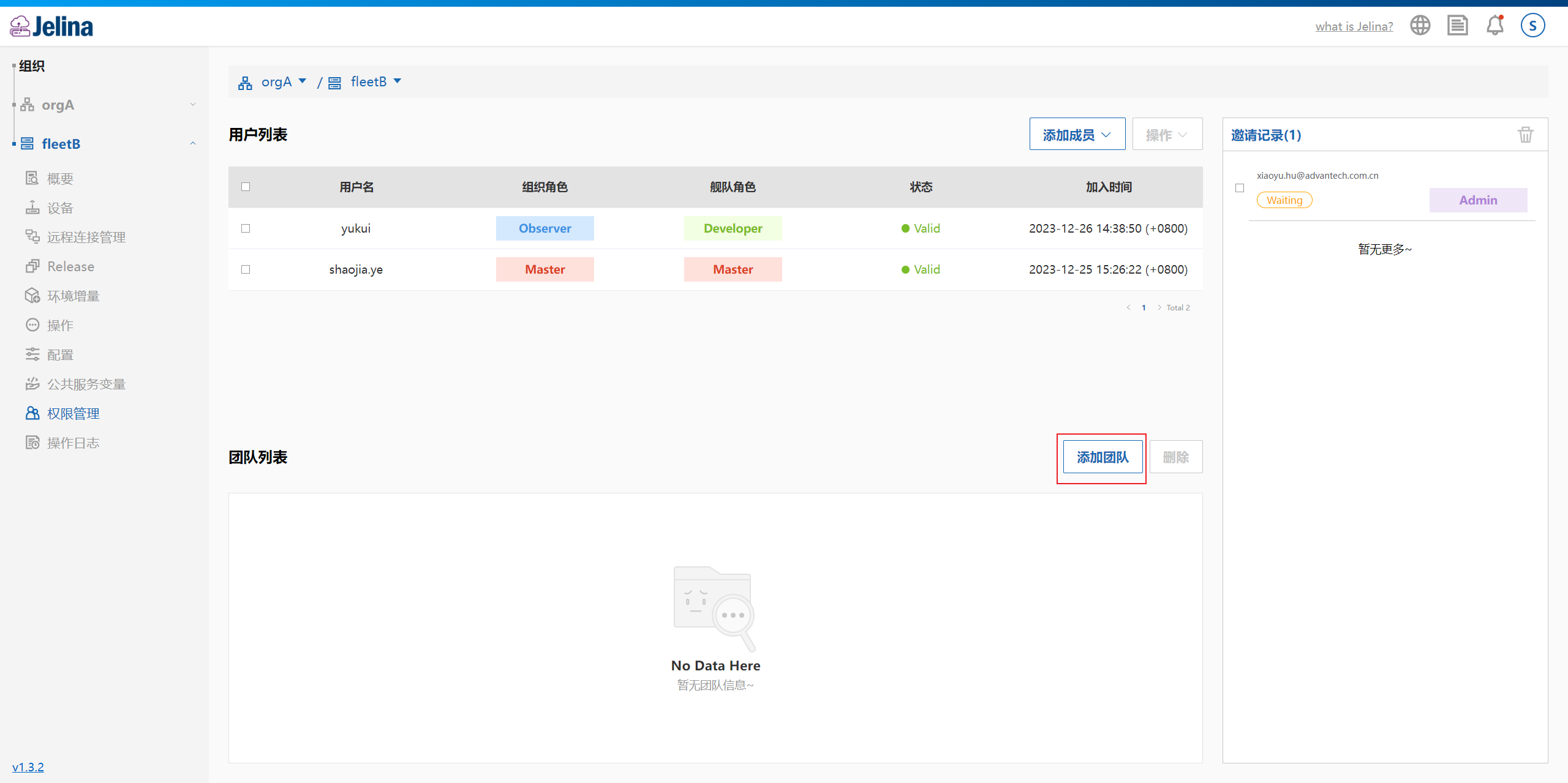
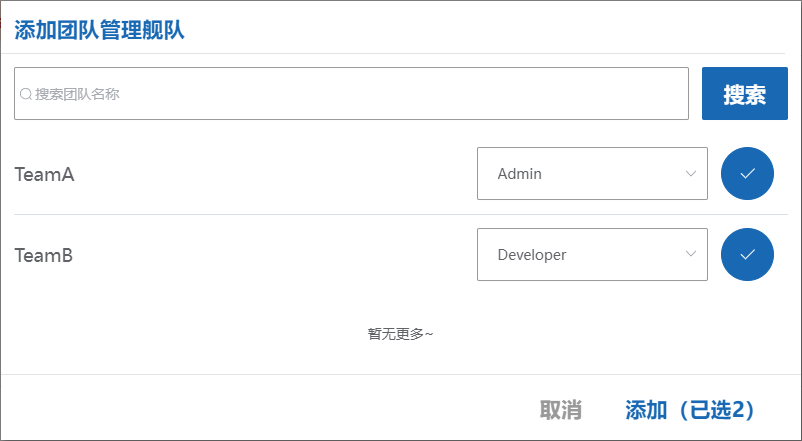
Select teams and their fleet management roles, then select Add.
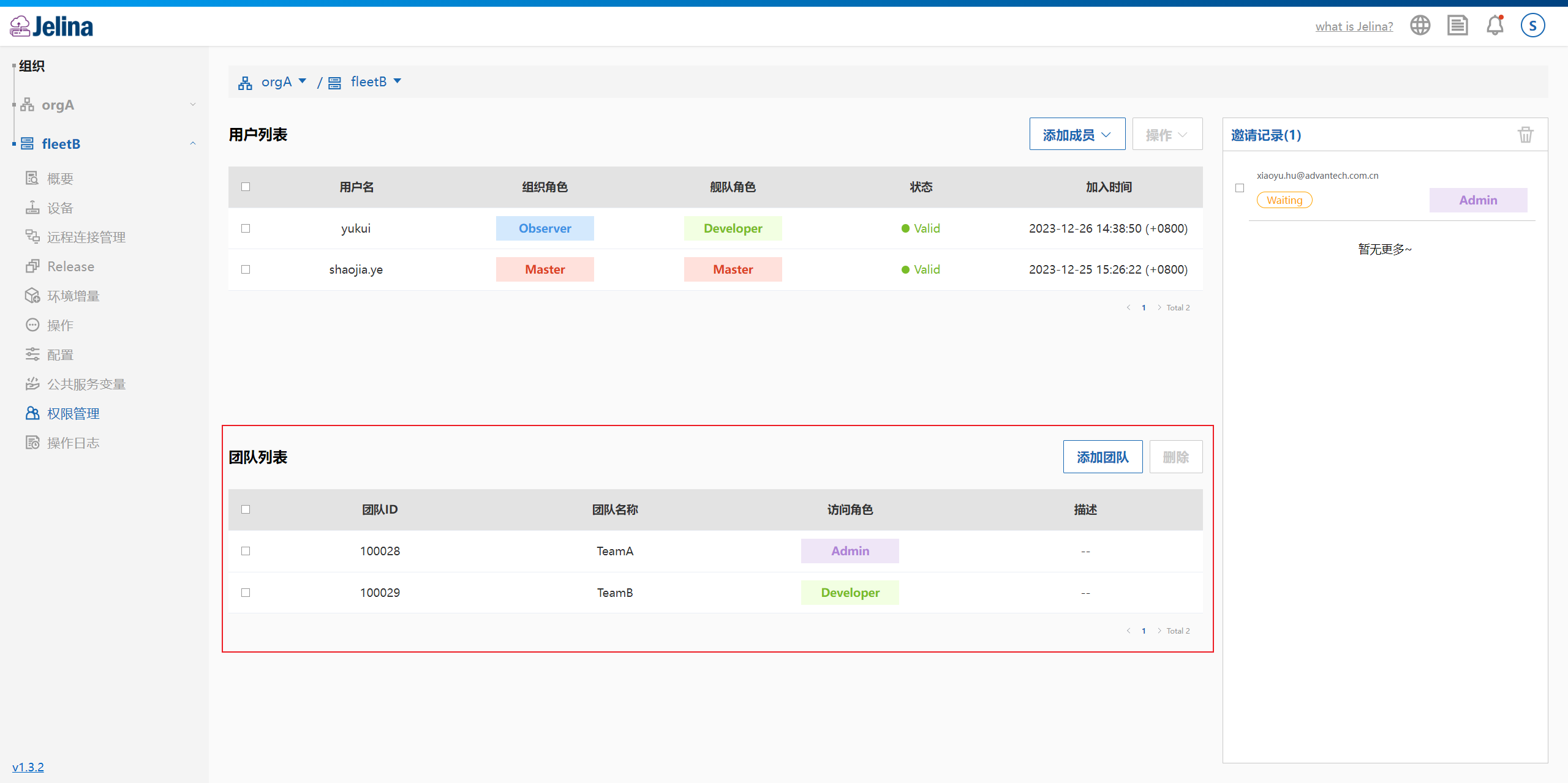
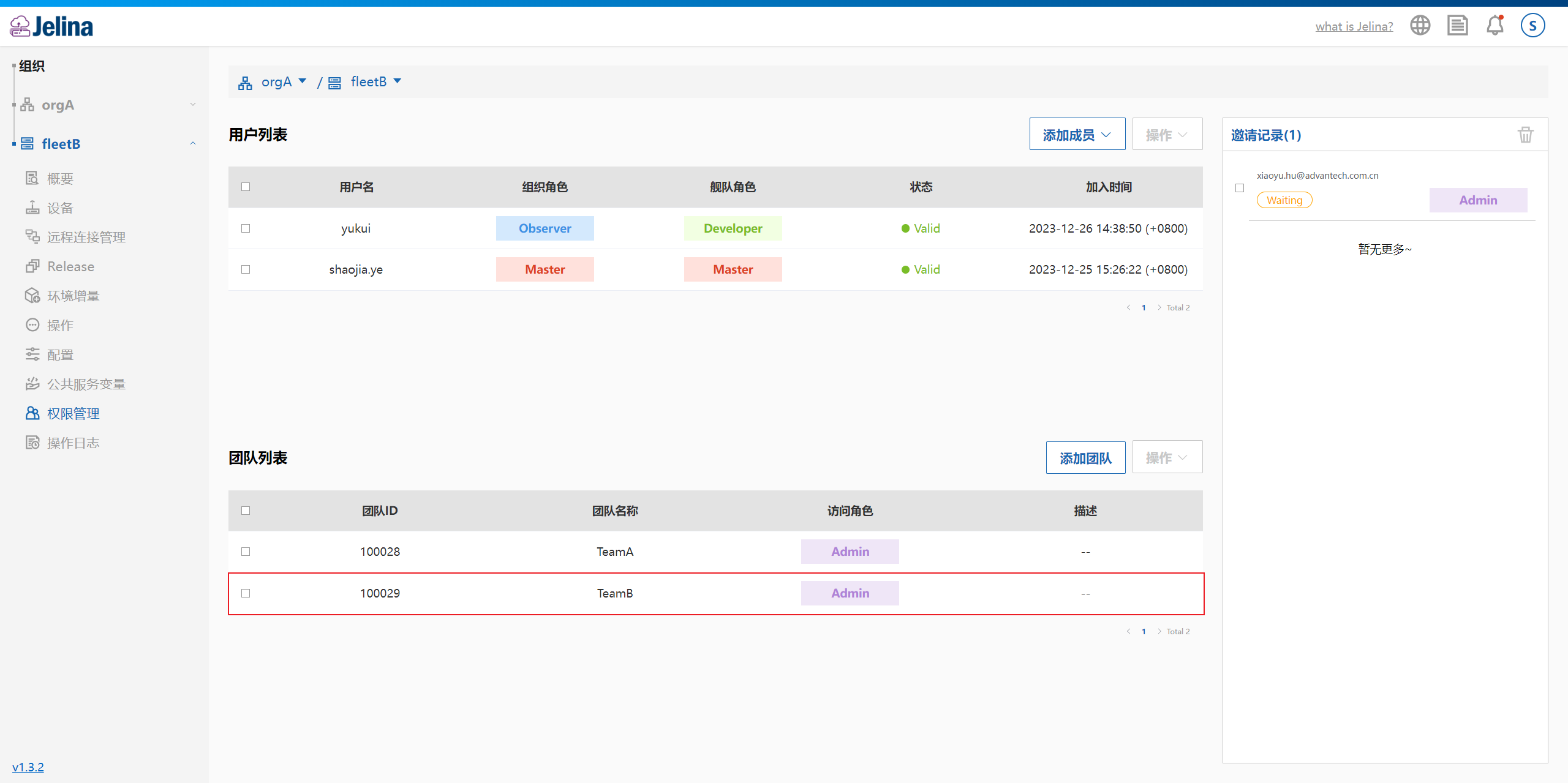
The new teams appear in the team list.
Edit team access roles
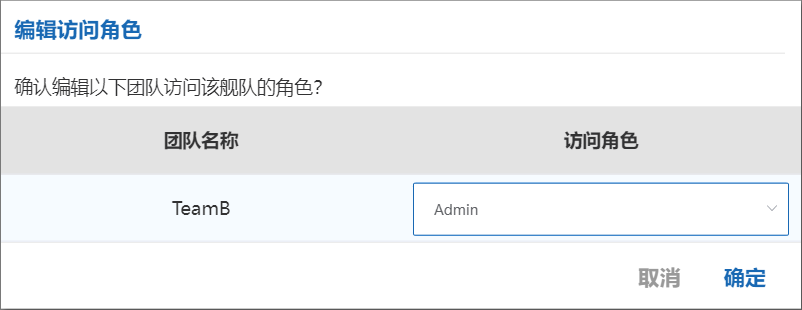
Section titled “Edit team access roles”Open fleet permission management, select the team, and select Edit.
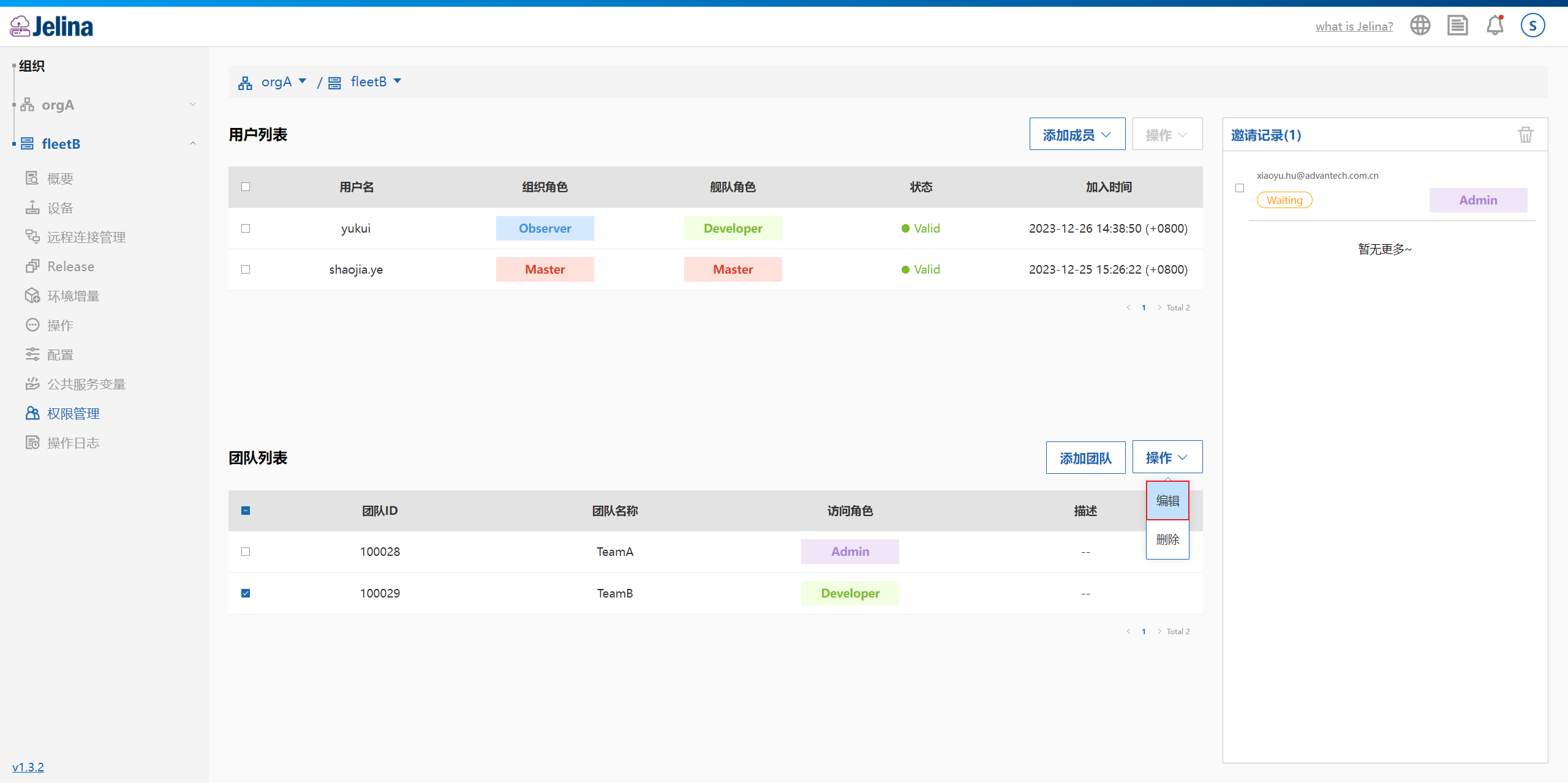
Choose the new role and select OK.
The updated role appears in the list.
Leave a fleet
Section titled “Leave a fleet”After joining a fleet, users can leave from its overview page or the fleet list.
Note: If you are the fleet Master, leaving causes JelinaCloud to delete the fleet.
Remote access management
Section titled “Remote access management”The fleet’s “Remote access management” entry replaces “Remote connection management” and includes “Connection management” and “Key management” tabs.
“Connection management” lists active connections and lets authorized users disconnect unused ones. “Key management” stores shared fleet user private keys and optional OpenSSH user certificates, permitted members, and default credentials. For the same system account and authentication method, device credentials take precedence; fleet credentials are inherited when no matching device configuration exists.
The device-level page contains only key management and device host identity, without a connection management tab. Before using SSH keys or certificates, users configure device public keys or CA trust and principal rules themselves, then save user credentials and manually register and confirm the host identity in the platform. No synchronization acknowledgment is required. For Windows/Linux generation and configuration instructions, see “SSH key and certificate authentication” below.
For management, see remote access management. For initiating connections, see SSH key and certificate authentication.