
Jelina roles and permissions
Jelina provides comprehensive permission management for enterprise collaboration. The following roles have these permissions:
Organization roles
Section titled “Organization roles”
- Master: Creator, with all organization permissions.
- Admin: Administrator, with all permissions except deleting the organization.
- Observer: Read-only organization access.
- Member: A user invited through a fleet joins its organization as a Member by default and has permissions for that fleet only.
Fleet roles
Section titled “Fleet roles”
- Master: Creator, with all fleet permissions.
- Admin: Administrator, with all permissions except deleting the fleet.
- Developer: Can add devices, publish releases, and upload incremental packages.
- Observer: Read-only fleet access.
Relationship between organization and fleet roles
Section titled “Relationship between organization and fleet roles”Organization roles apply to organizations, and fleet roles to fleets. Because fleets belong to organizations, organization roles also apply to fleets. Fleet roles allow members to receive higher permissions for selected fleets without raising organization-wide access. When a user has both organization and fleet roles, Jelina uses the higher permissions for fleet access.
Three ways to grant fleet access
Section titled “Three ways to grant fleet access”Grant access through organization roles, fleet roles, or team fleet roles. If a user receives fleet access through multiple methods, the system uses the role with the highest permissions.
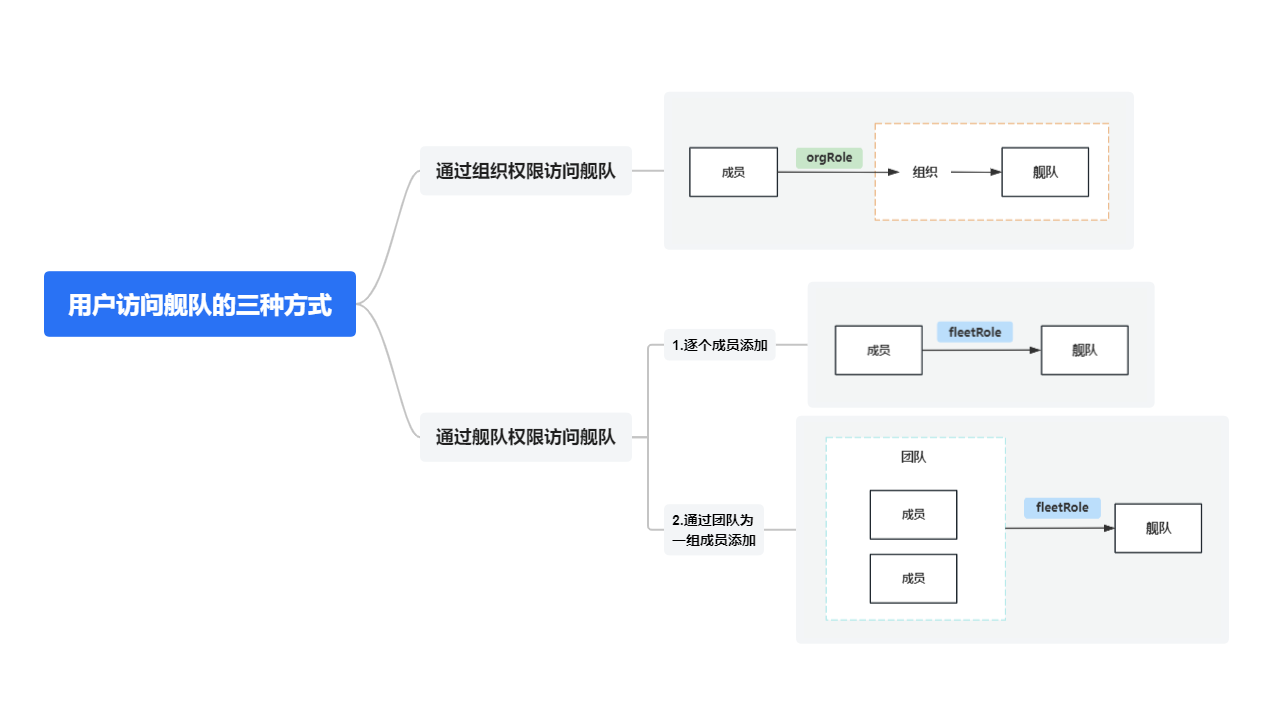
See the following chapters for related procedures.
Remote access permissions
Section titled “Remote access permissions”Remote access uses the effective fleet role from organization, fleet, and team grants. Web access and device SSH system-account authorization are validated separately; fleet access does not automatically provide login credentials for a system account.
| Operation | Master / Admin | Developer | Observer |
|---|---|---|---|
| View platform SSH authorization and host identity | Yes | Yes | Yes |
| Initiate remote connections | Yes | Yes | No |
| Import or disable own user certificates | Yes | Yes | No |
| Manage public keys, CA trust, and account authentication policies | Yes | No | No |
| Confirm host identity or revoke certificates on devices | Yes | No | No |
All users must satisfy the device account’s authentication policy, certificate validity, and authorization scope. The platform manages connection quotas and session limits; tenant Masters and Admins cannot relax organization plan limits.
See remote access management for procedures.