
Canvas operations
1. Minimap
Section titled “1. Minimap”The minimap shows the entire canvas in the plugin workspace. The blue rectangle indicates the current viewport; moving it pans the canvas.
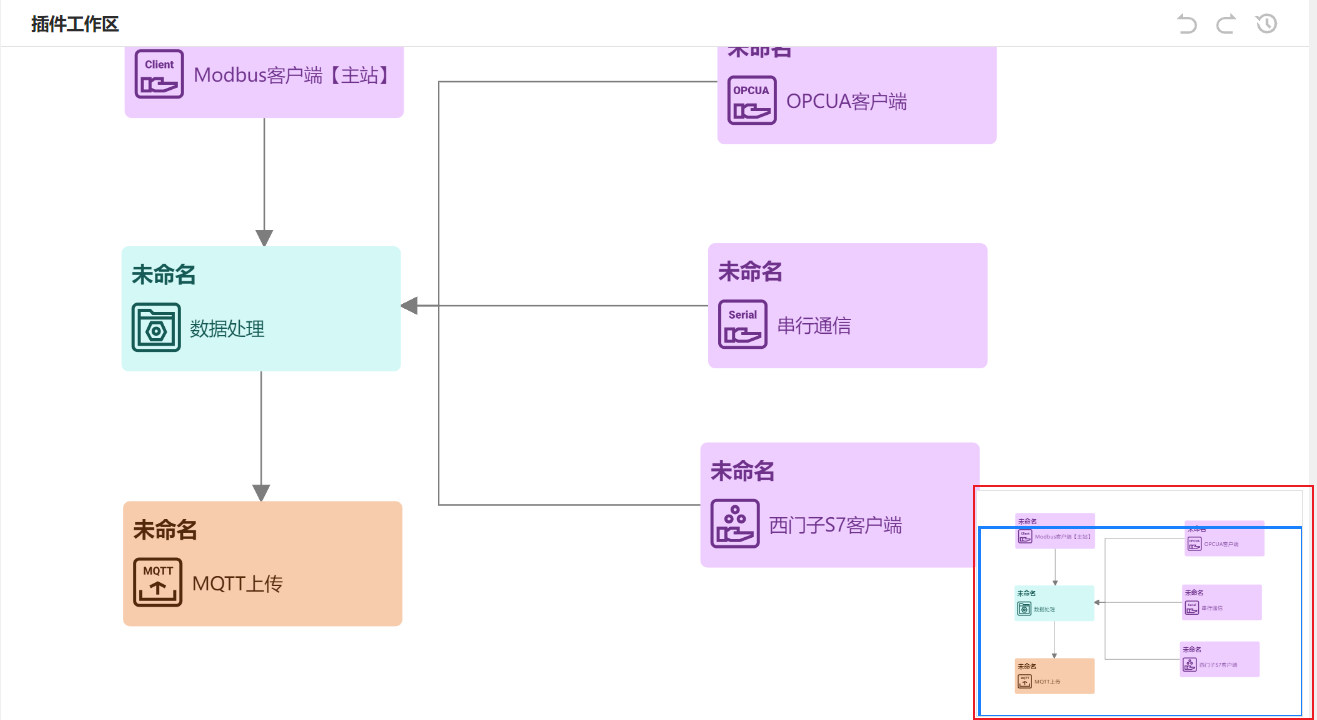
Zoom the plugin workspace with Ctrl + mouse wheel.
2. Undo
Section titled “2. Undo”Undo cancels the last operation and returns the workspace to the previous step.
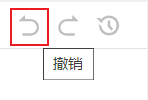
Undo is unavailable in these cases:
-
Case 1: After switching to Device Connectivity or refreshing the page.
-
Case 2: After undoing back to the initial state.
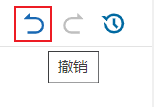
Undo is available after these operations:
-
Case 1: Add, delete, or move nodes and connections.
-
Case 2: Move a selection of nodes and connections.
-
Case 3: Edit node information.
-
Case 4: Add, delete, or edit schemes within nodes, or change scheme enablement.
3. Redo
Section titled “3. Redo”Redo restores an undone operation. Undo cancels the most recent action; redo executes that action again.
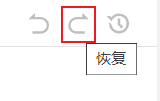
Redo is unavailable in these cases:
-
Case 1: After switching to Device Connectivity or refreshing the page.
-
Case 2: After redoing up to the latest state.
-
Case 3: Before any undo operation.
Redo is available to advance to the next step in this case:
- Case 1: The previous operation was Undo.
4. History
Section titled “4. History”- History is unavailable after switching to Device Connectivity or refreshing the page.
- Adding, deleting, or editing nodes, connections, or schemes enables History, as with Undo.
- Open History to view the current state. Select a record to jump to that step.
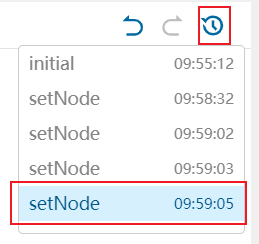
Note: If you do not select a step, select the History button again to close the list.