Device gateway
1. Gateway information
Section titled “1. Gateway information”(1) Gateway information in Digital Twin shows device name, CPU name/usage, serial ports, total memory/usage, IP information, platform, and total storage/usage.
(2) Serial ports and IP addresses initially show counts. Hover to view their addresses. CPU, memory, and storage display usage percentages.
- Serial ports:

- IP: eth0 or eth1 may have no address, depending on network connectivity.

(3) Select Edit to change the device name. An empty name triggers an error and restores the current name.

2. Data flow status
Section titled “2. Data flow status”(1) View the overall data flow and current runtime status of all plugin nodes.
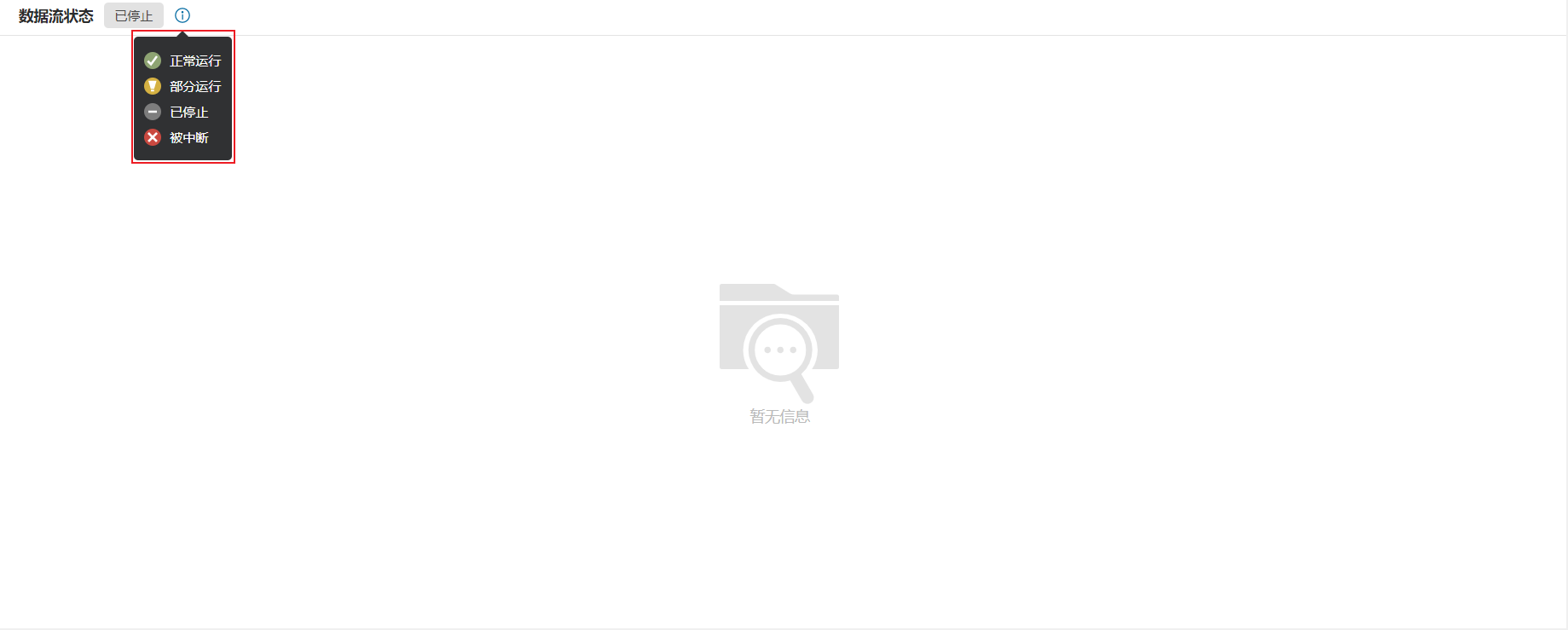
Hover over the icon beside runtime status to display all four states:
-
Running normally
-
Partially running
-
Stopped
-
Interrupted
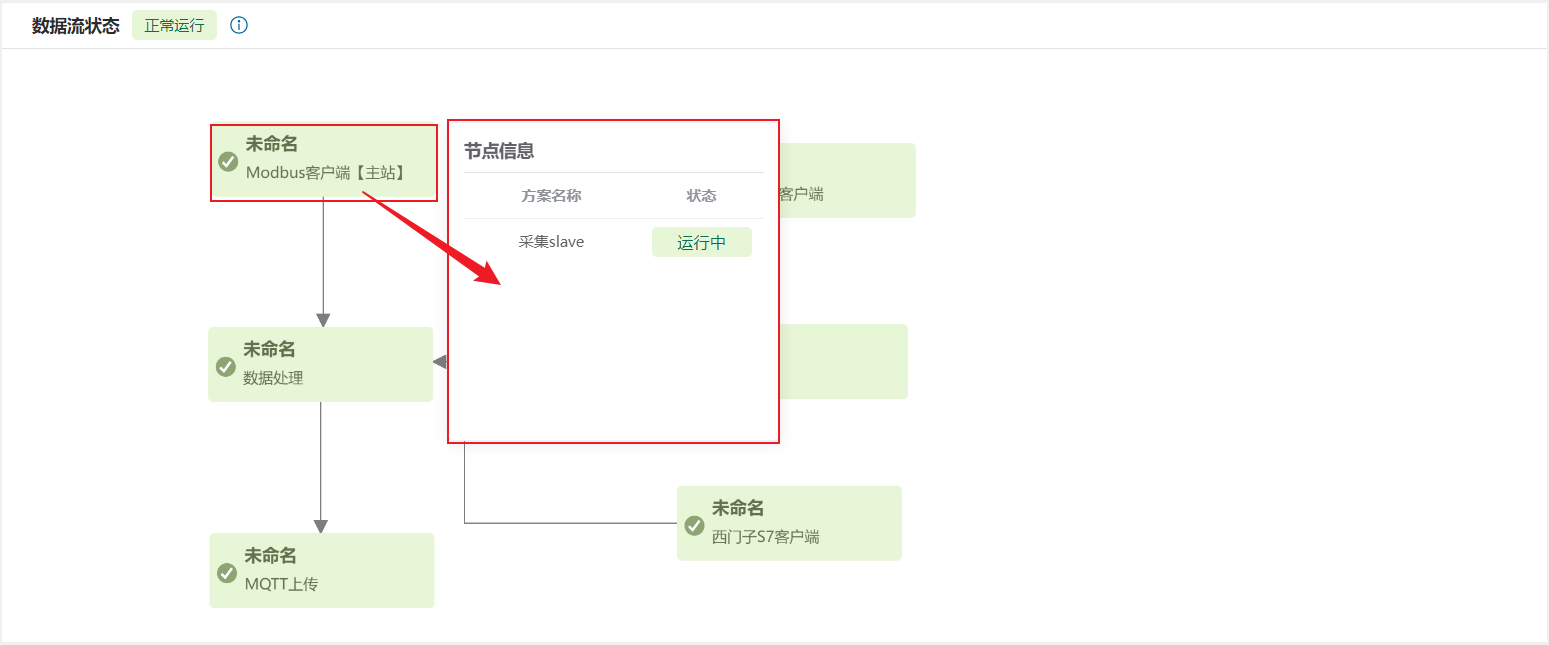
(2) Each node shows its runtime status, node name, and other read-only information.
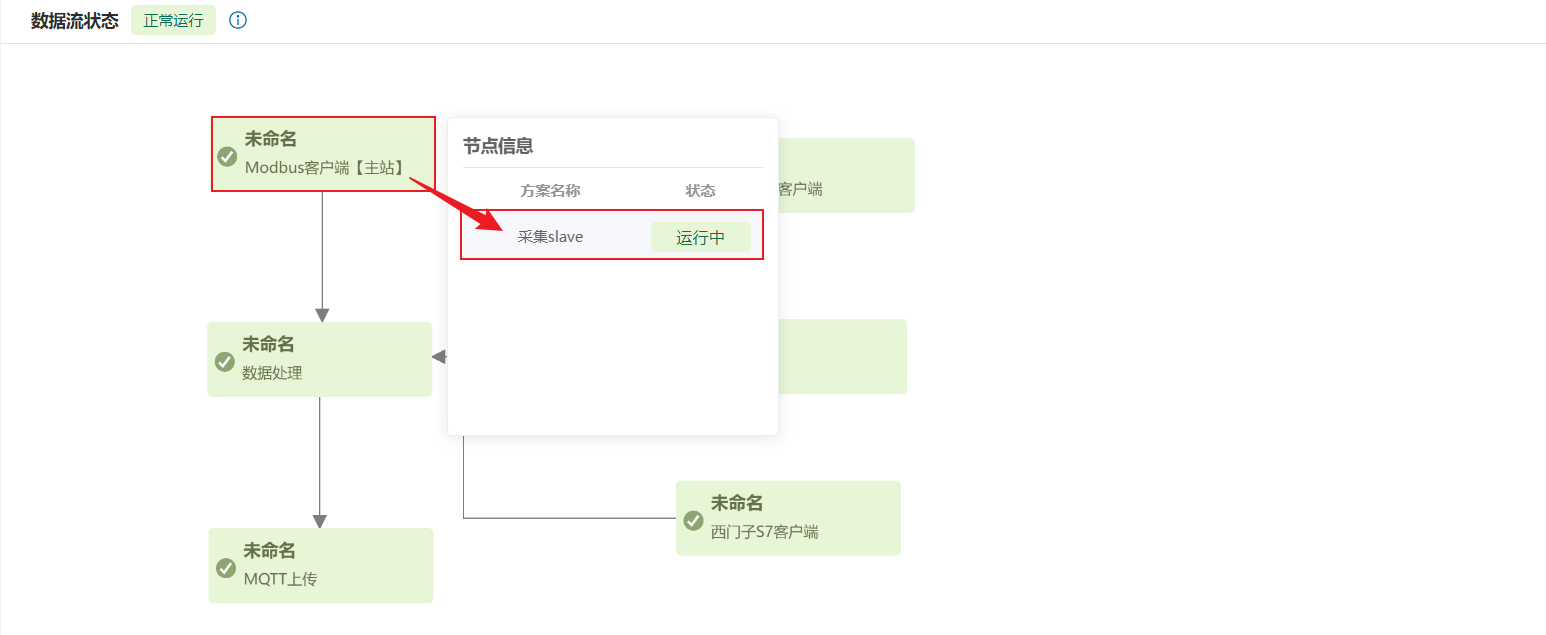
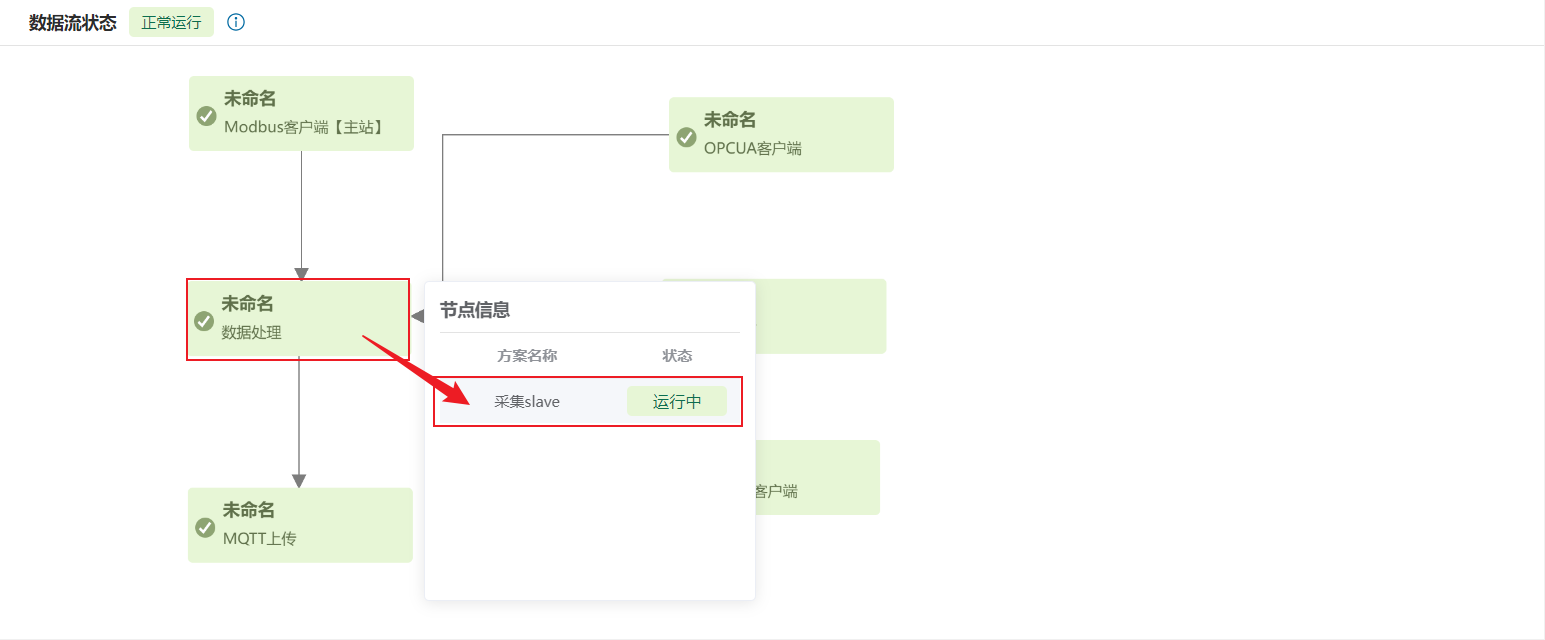
(3) Hover over a node to display its scheme names and statuses. Processing plugins do not show this popup.
3. Real-time data
Section titled “3. Real-time data”Connect MQTT Upload downstream of an acquisition node, such as Modbus Client (Master) or Serial Communication, to display acquired real-time data in that node. Add Data Processing to display processed data for the corresponding scheme in the processing node.
View real-time data
Section titled “View real-time data”Requirement: An acquisition plugin must connect to another downstream plugin before real-time data can be viewed.
Select a scheme in an acquisition plugin to view its scheme name, data names, and real-time values. Pagination is available for large datasets.
Acquired data before processing: Digital Twin → hover over Modbus Client → select Scheme.
Processed data: Digital Twin → hover over Data Processing → select Scheme.
View historical data
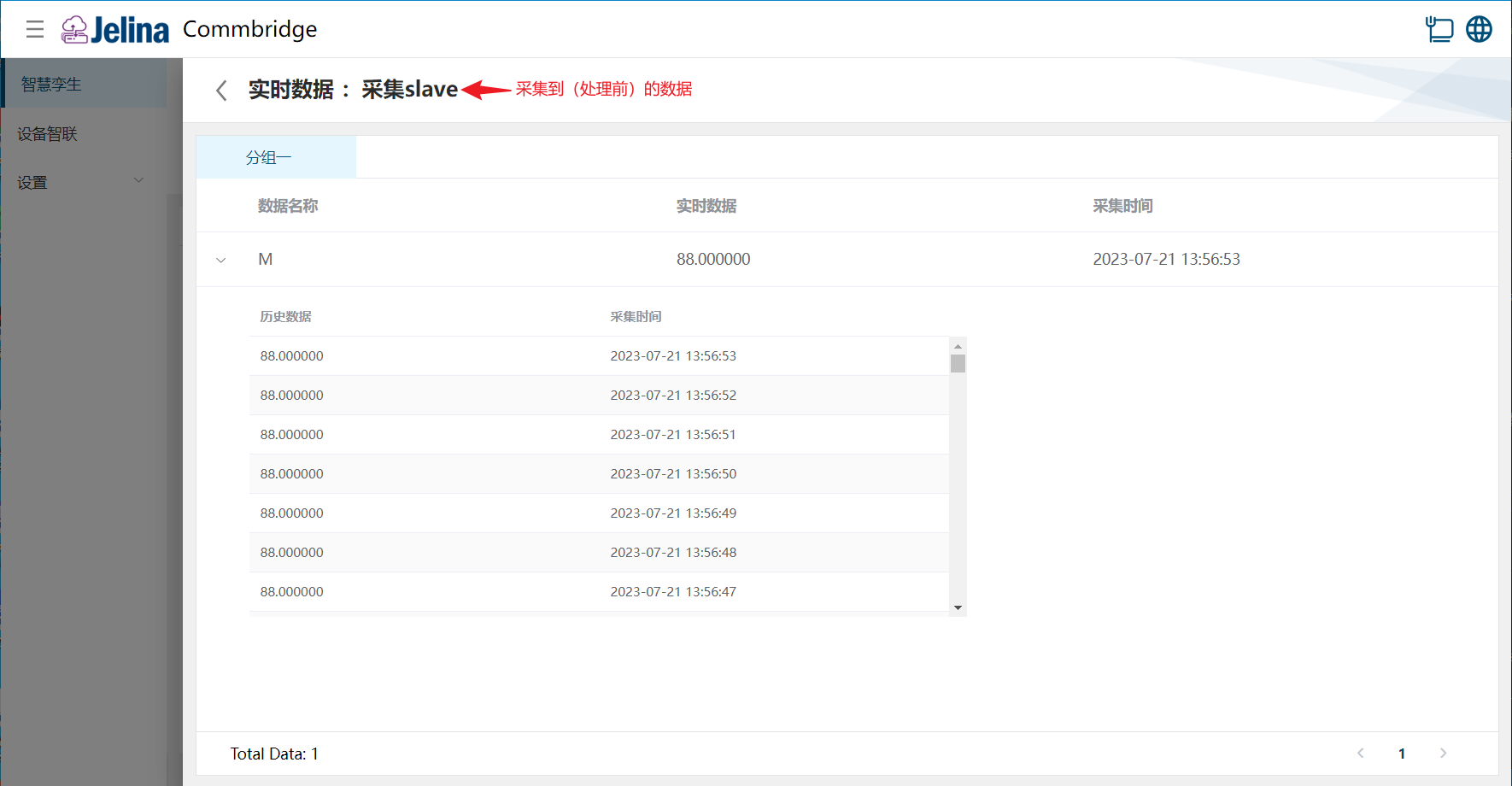
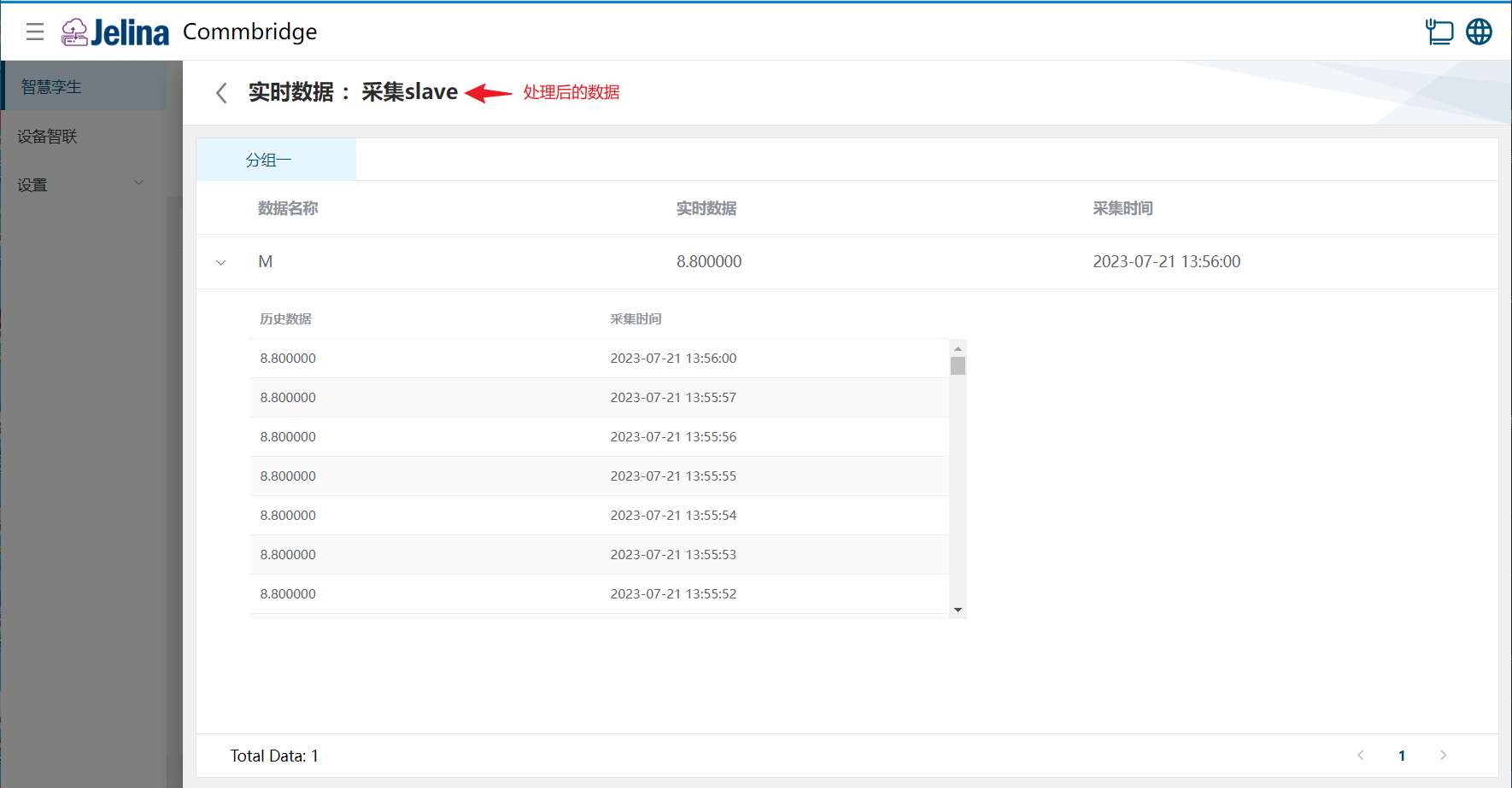
Section titled “View historical data”From real-time data, select a data item to view 100 historical samples acquired for that point within one hour.
Before processing, in Modbus Client (Master):
After processing, in Data Processing:
Write Modbus data
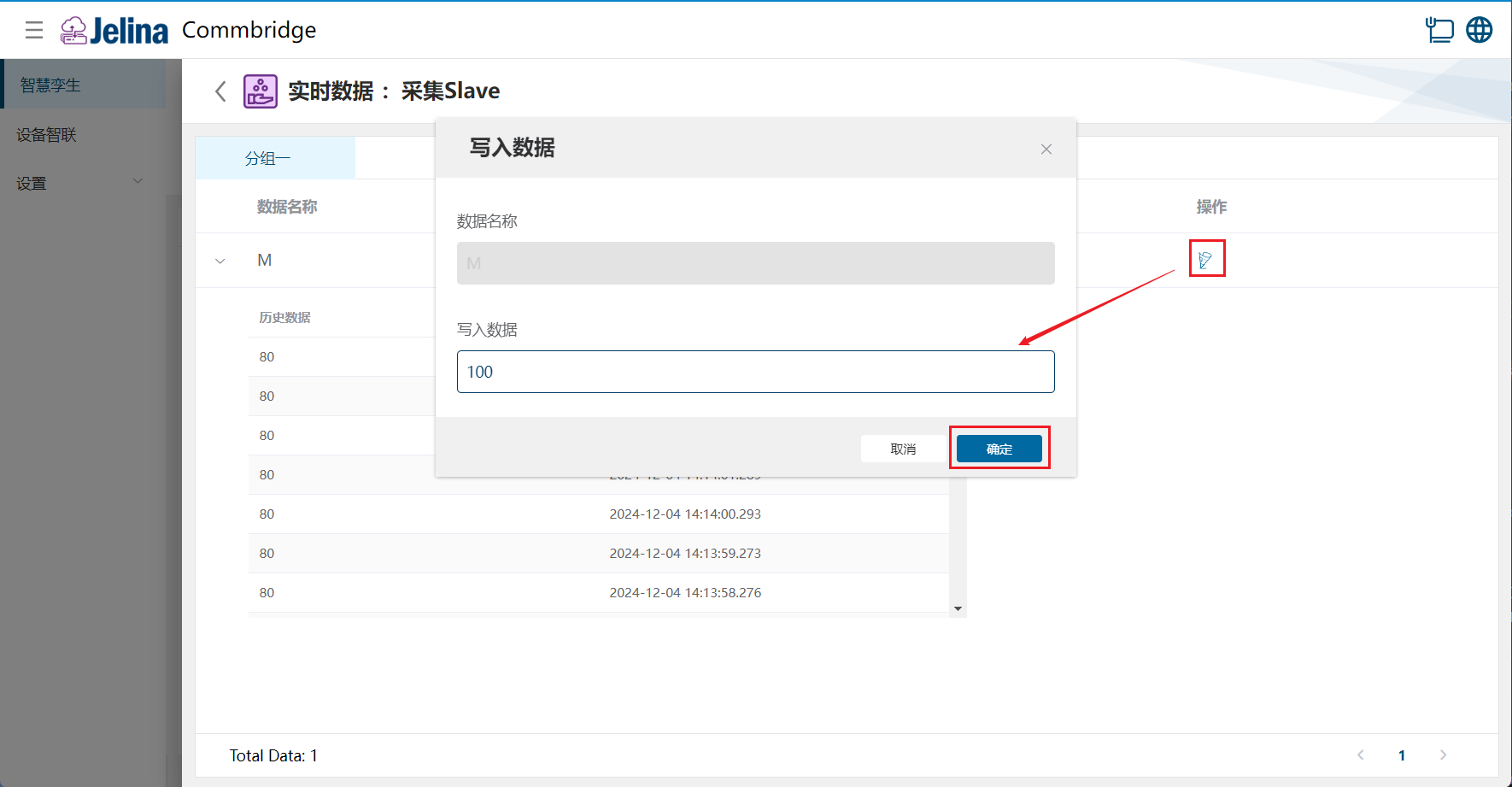
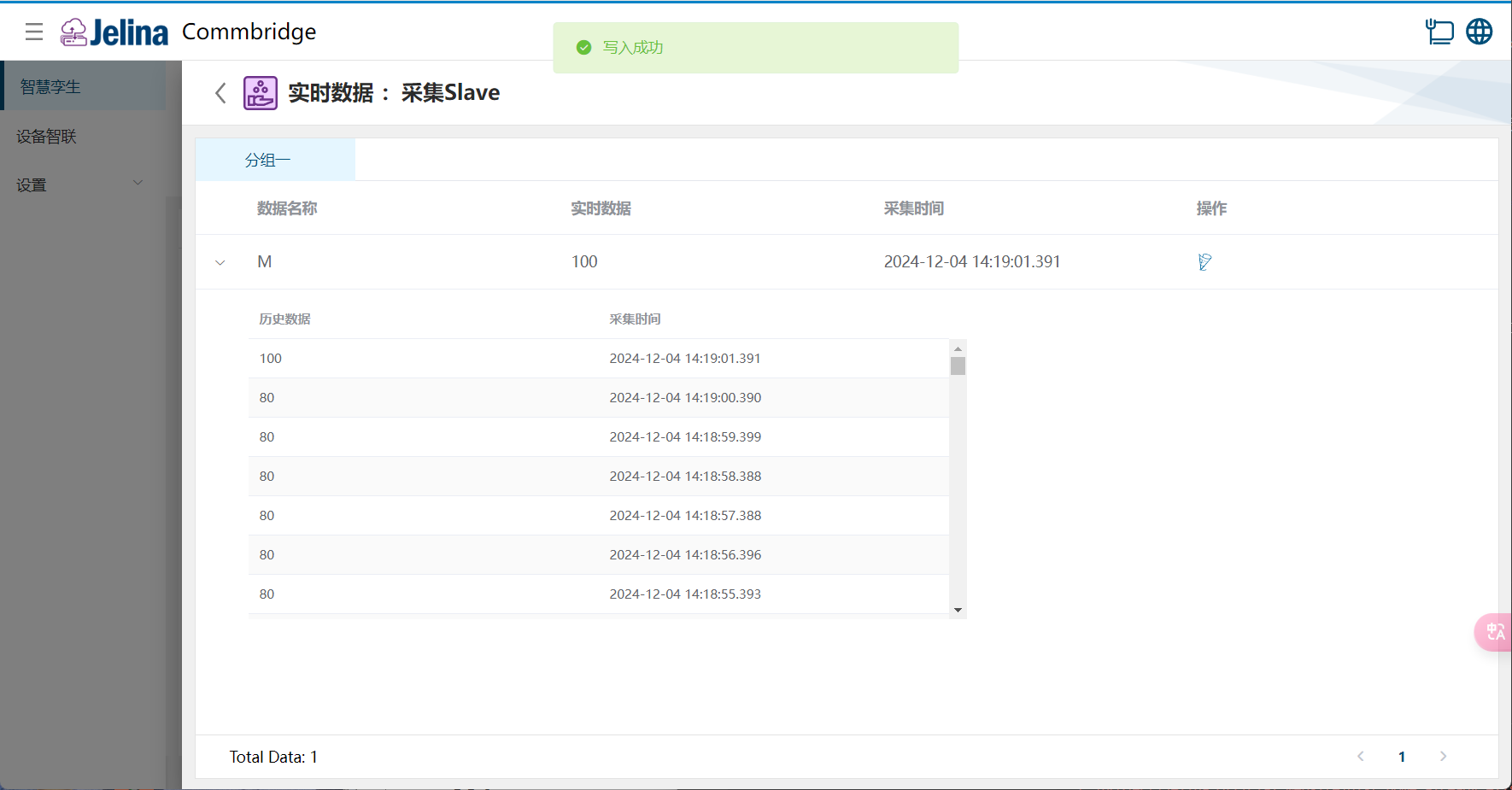
Section titled “Write Modbus data”Select Write for a point, enter the data, and select OK.