
Settings
1. System settings
Section titled “1. System settings”Gateway configuration
Section titled “Gateway configuration”- Back up gateway configuration
Open System settings and select Back up gateway configuration to export the device’s current configuration as a downloaded zip archive.
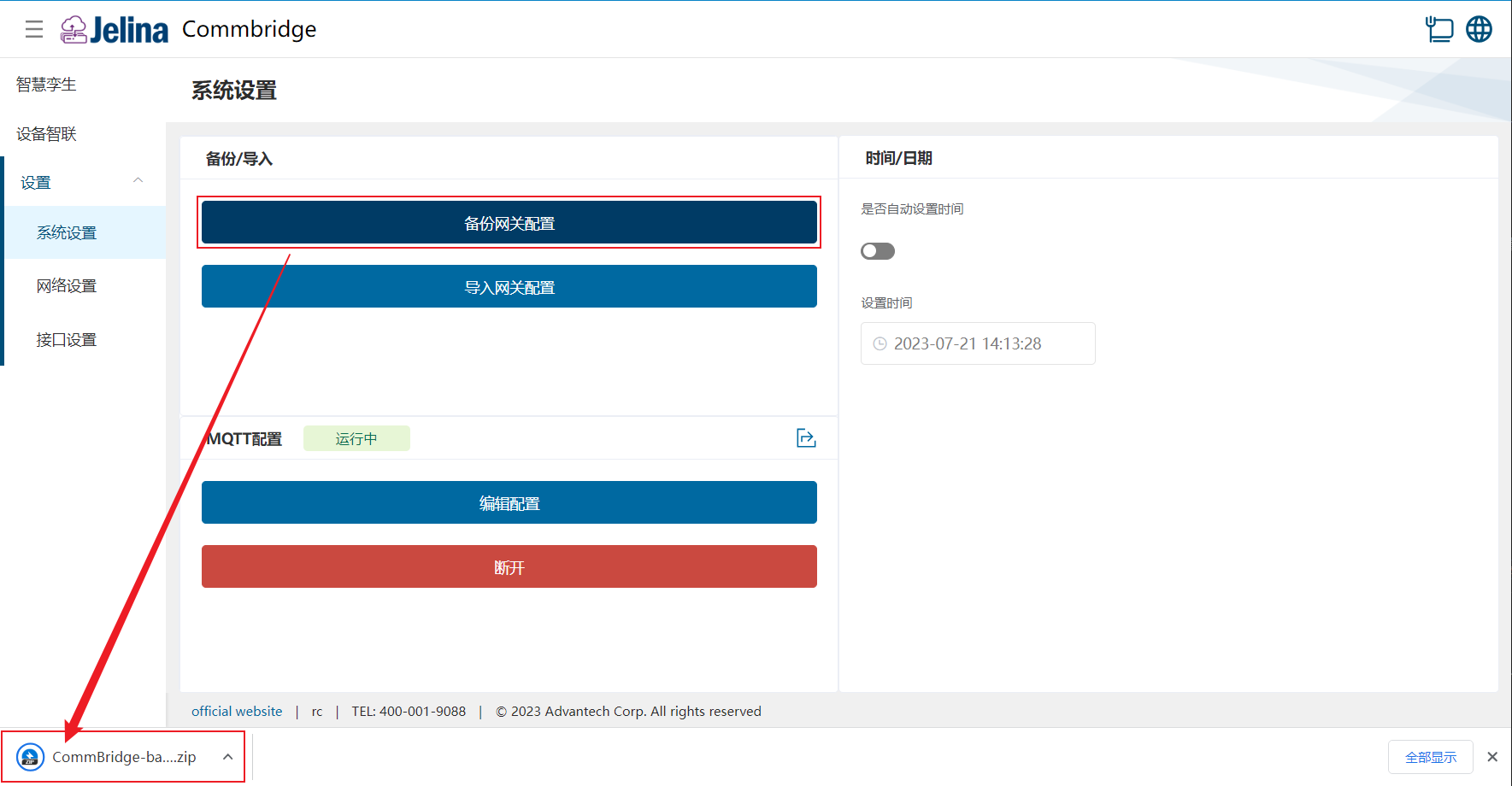
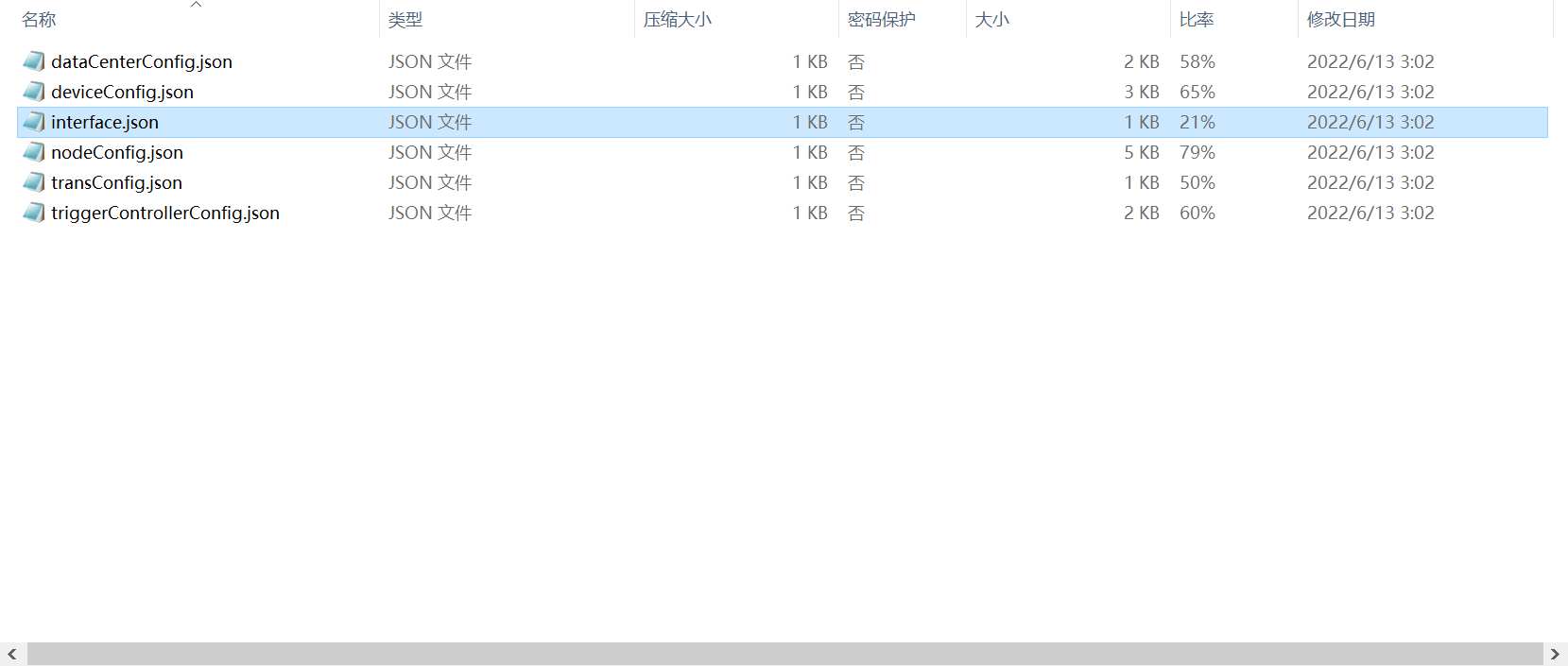
The backup includes:
(1) DataCenterConfig.json: Modbus Server plugin configuration
(2) DeviceConfig: acquisition plugin configuration
(3) Interface.json: serial/switch mode configuration
(4) NodeConfig.json: node configuration
(5) TransConfig.json: MQTT plugin configuration
(6) TriggerControllerConfig.json: GPIO plugin configuration
- Import gateway configuration
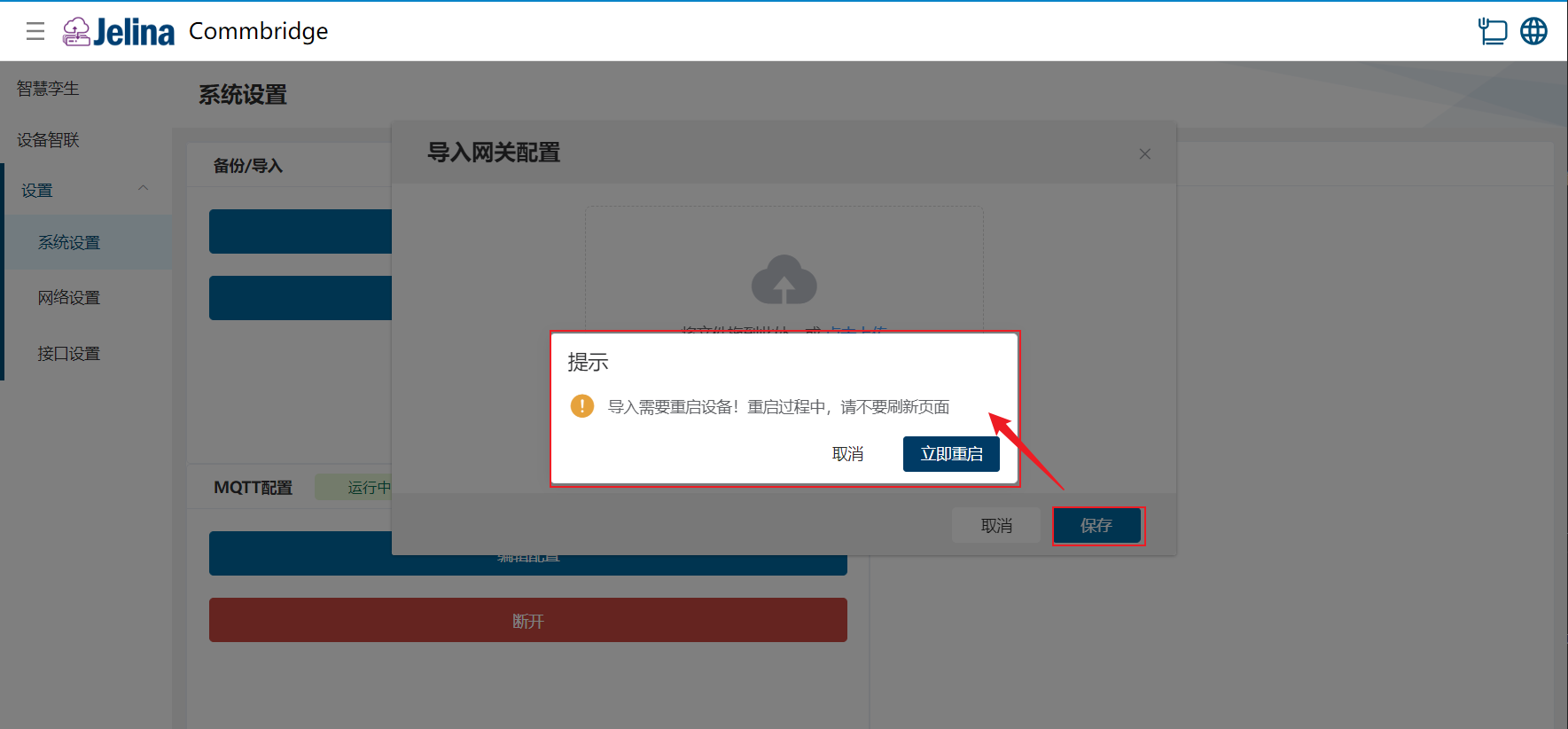
Open System settings, select Import gateway configuration, upload a zip file, and save.
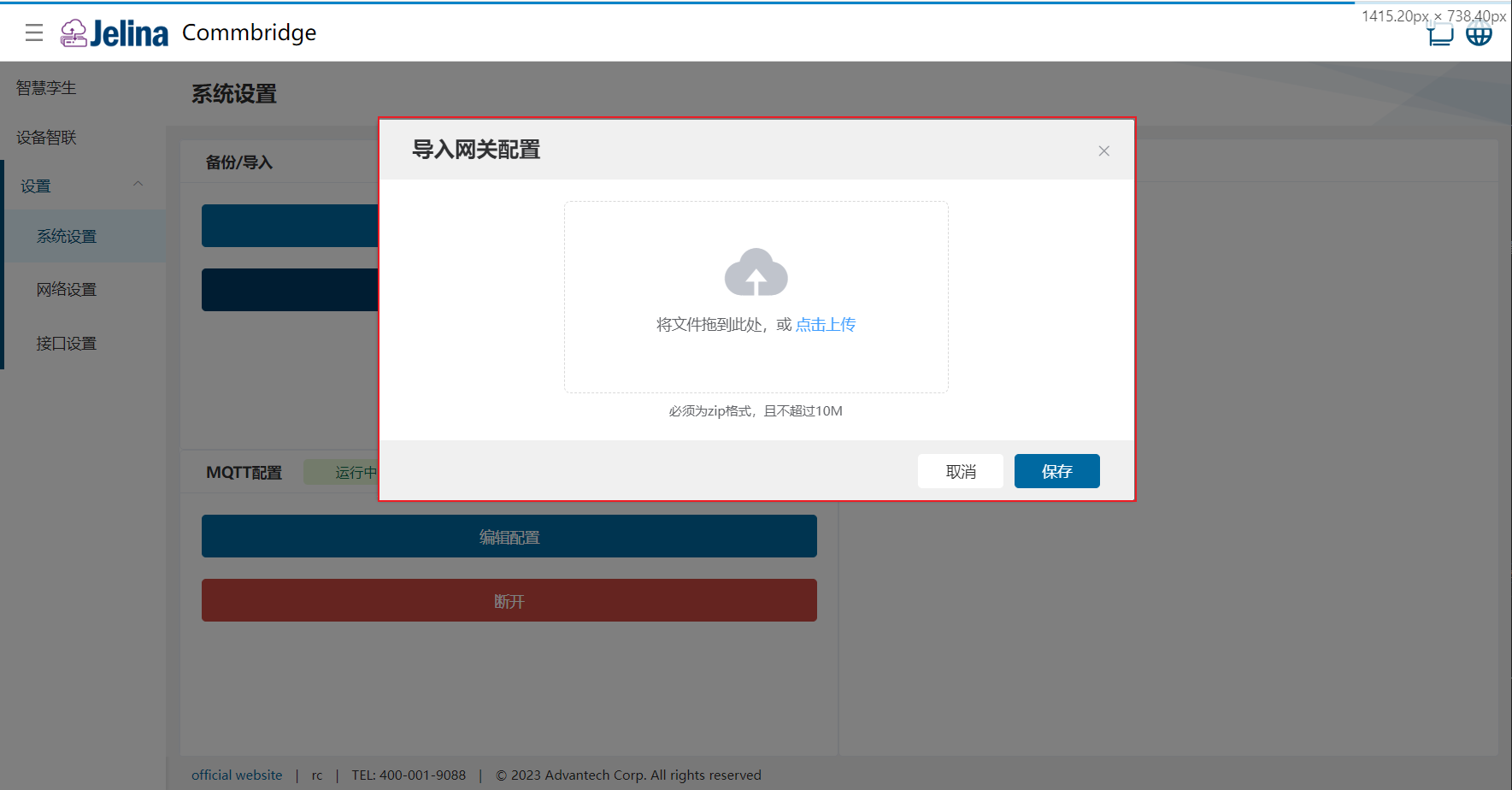
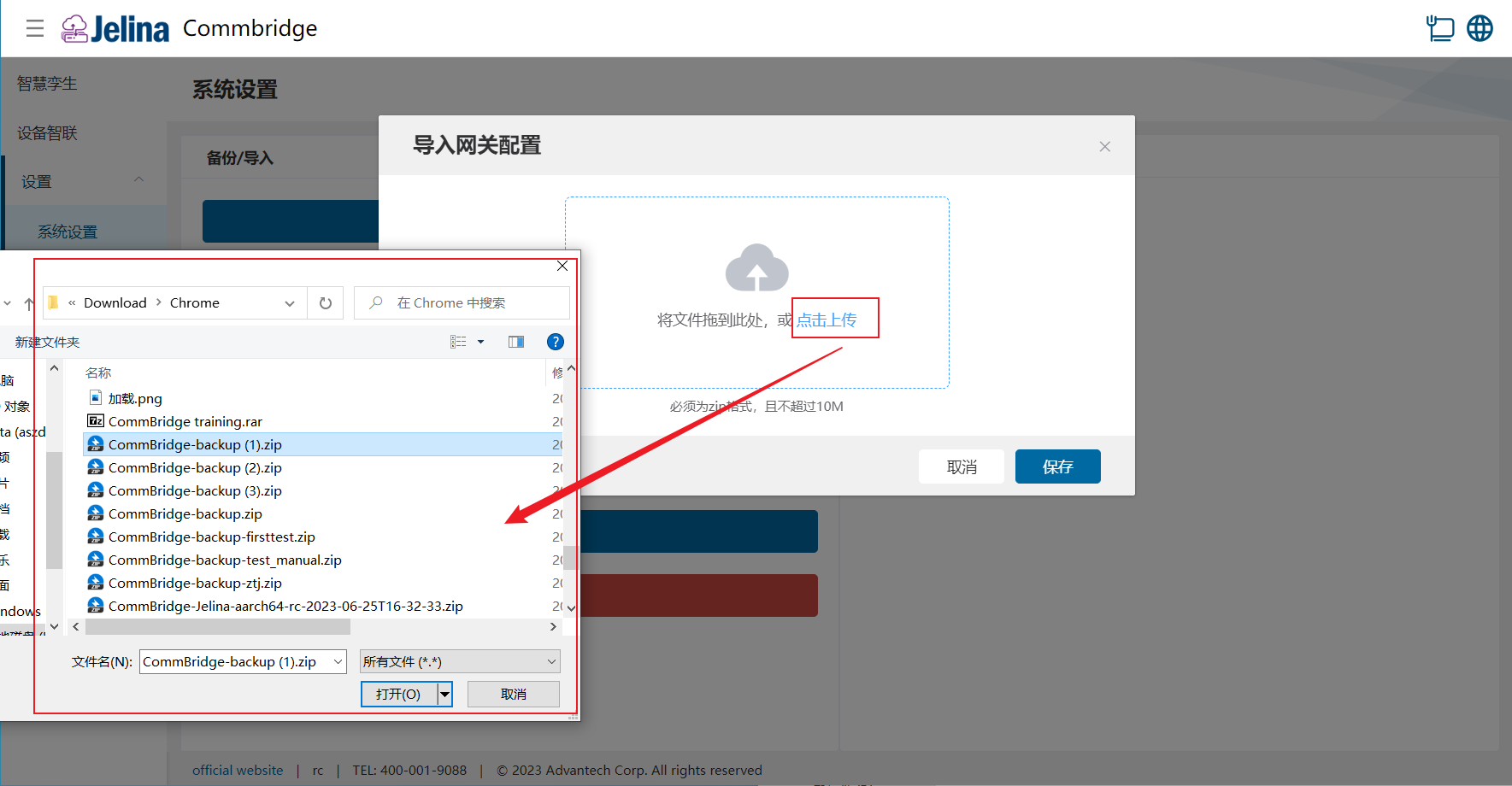
Ensure that the device is running normally during import. A successful import overwrites existing configuration and requires a restart. Select Restart now. Failed imports do not affect the original configuration.
Time settings
Section titled “Time settings”Set the device’s system time manually.
MQTT configuration synchronization
Section titled “MQTT configuration synchronization”Publish JSON configuration to an MQTT client topic to synchronize configuration across subscribed CommBridge instances.
Edit configuration
Section titled “Edit configuration”(1) Open Network settings and select Edit configuration under MQTT configuration.
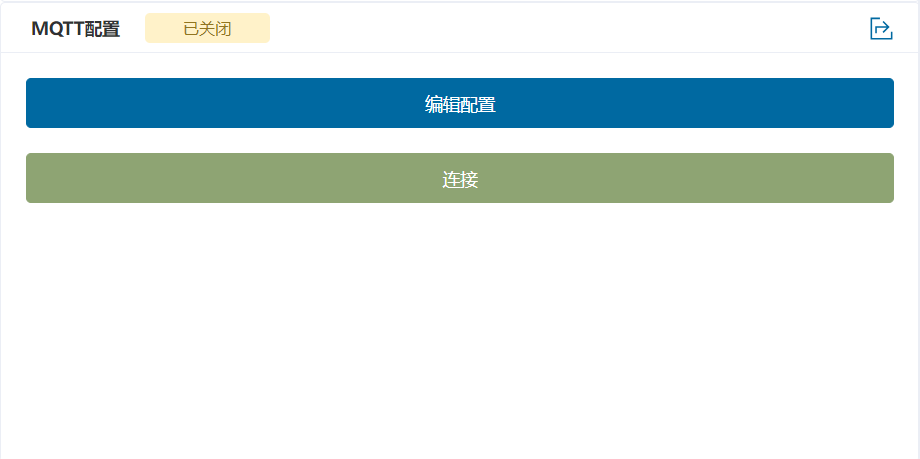
(2) In the subscription dialog, select Edit.
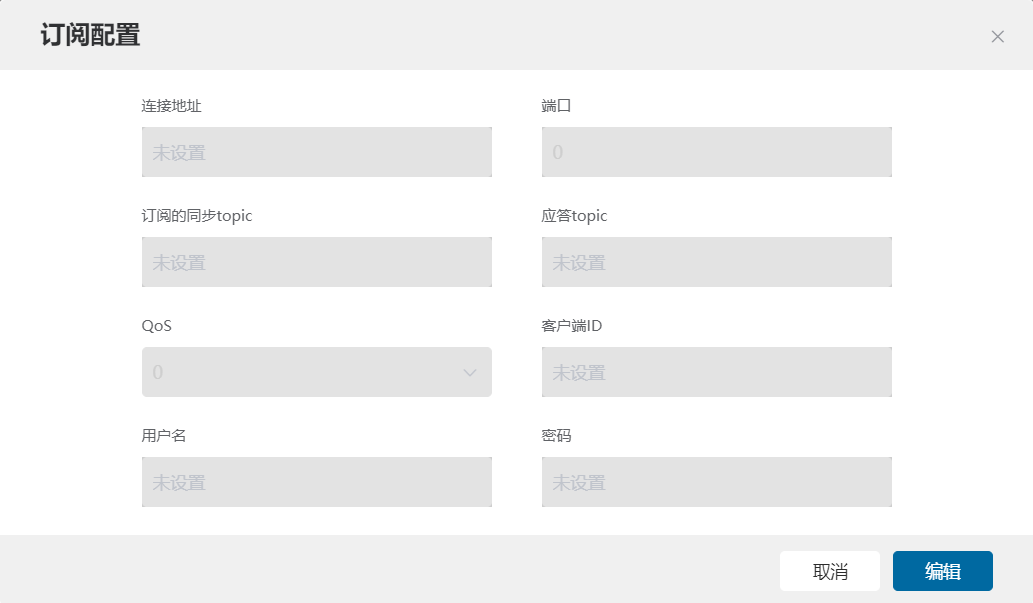
(3) Complete the subscription settings, save, and close the dialog.
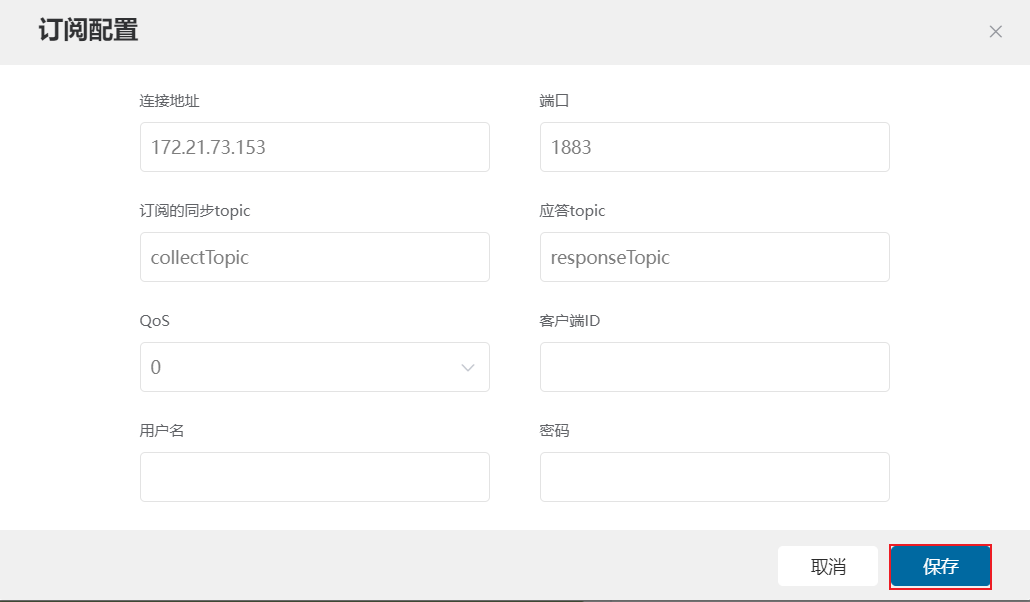
Select Download to obtain configuration for delivery through the MQTT client.
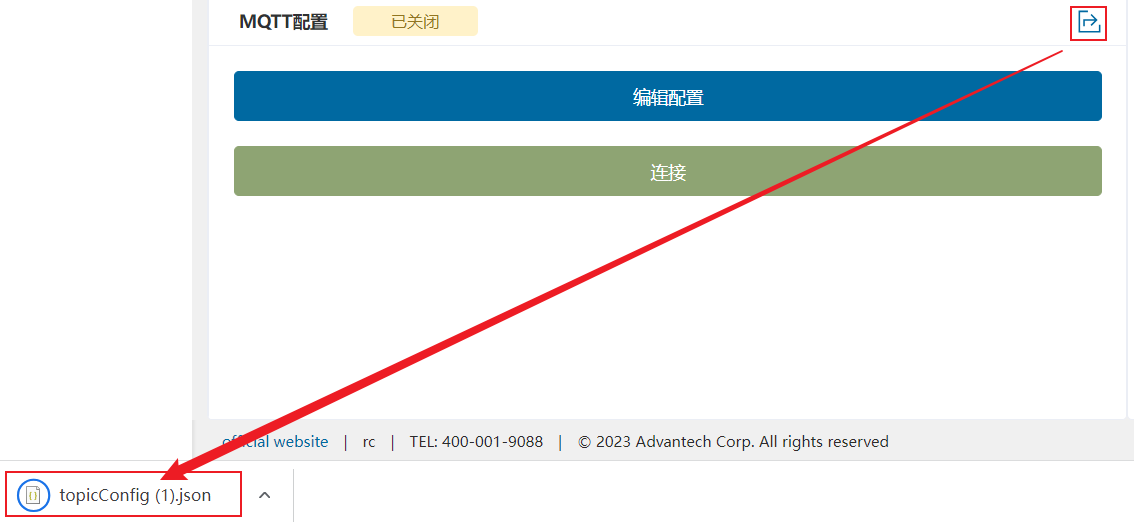
View results
Section titled “View results”(1) Select Connect to start the MQTT subscription service.
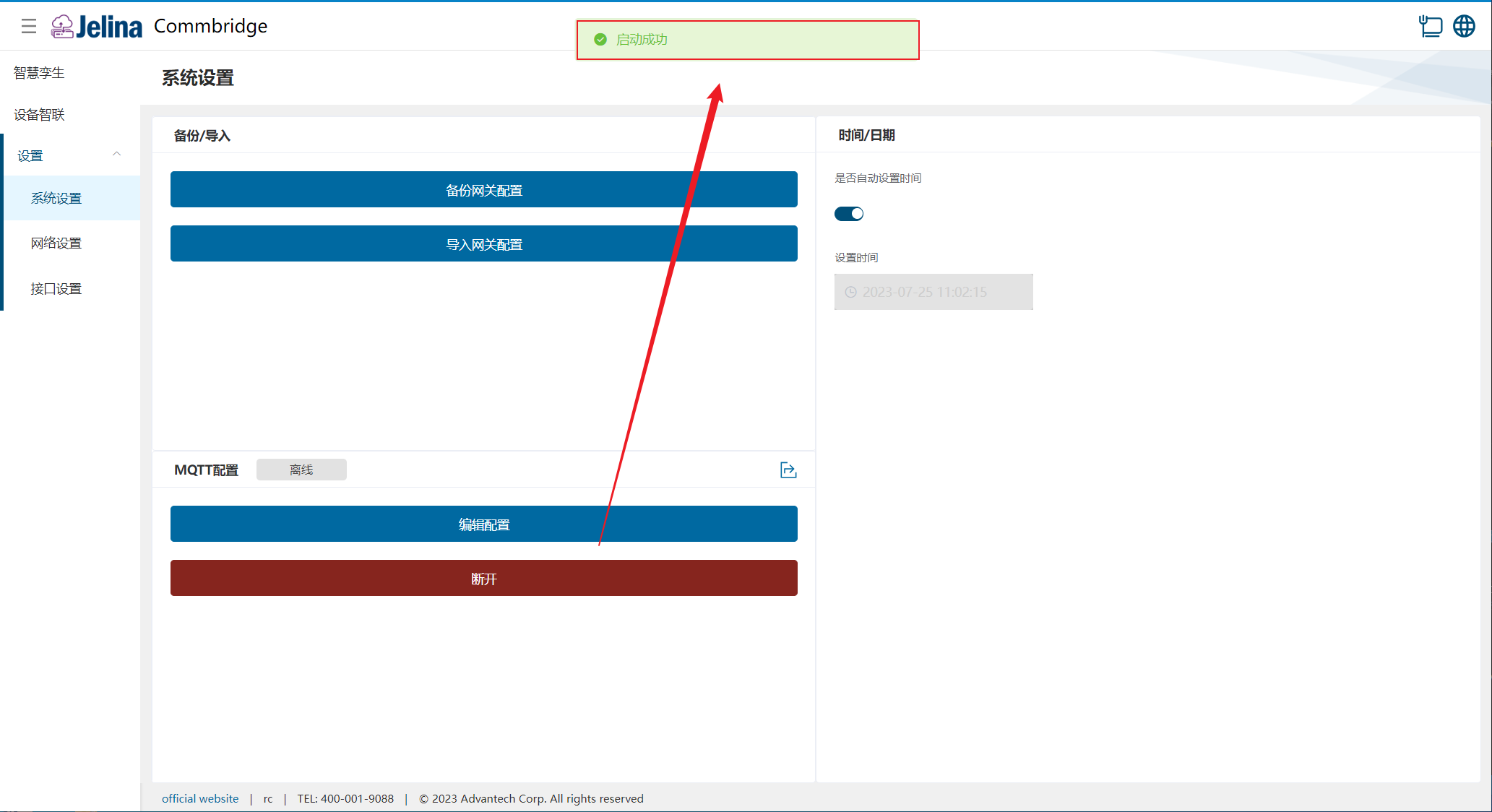
Before connecting, subscribe to the upload and response topics in the MQTT client. Publish the contents of
topicConfig.jsonto the upload topic.
(2) Select Disconnect to stop the subscription service.
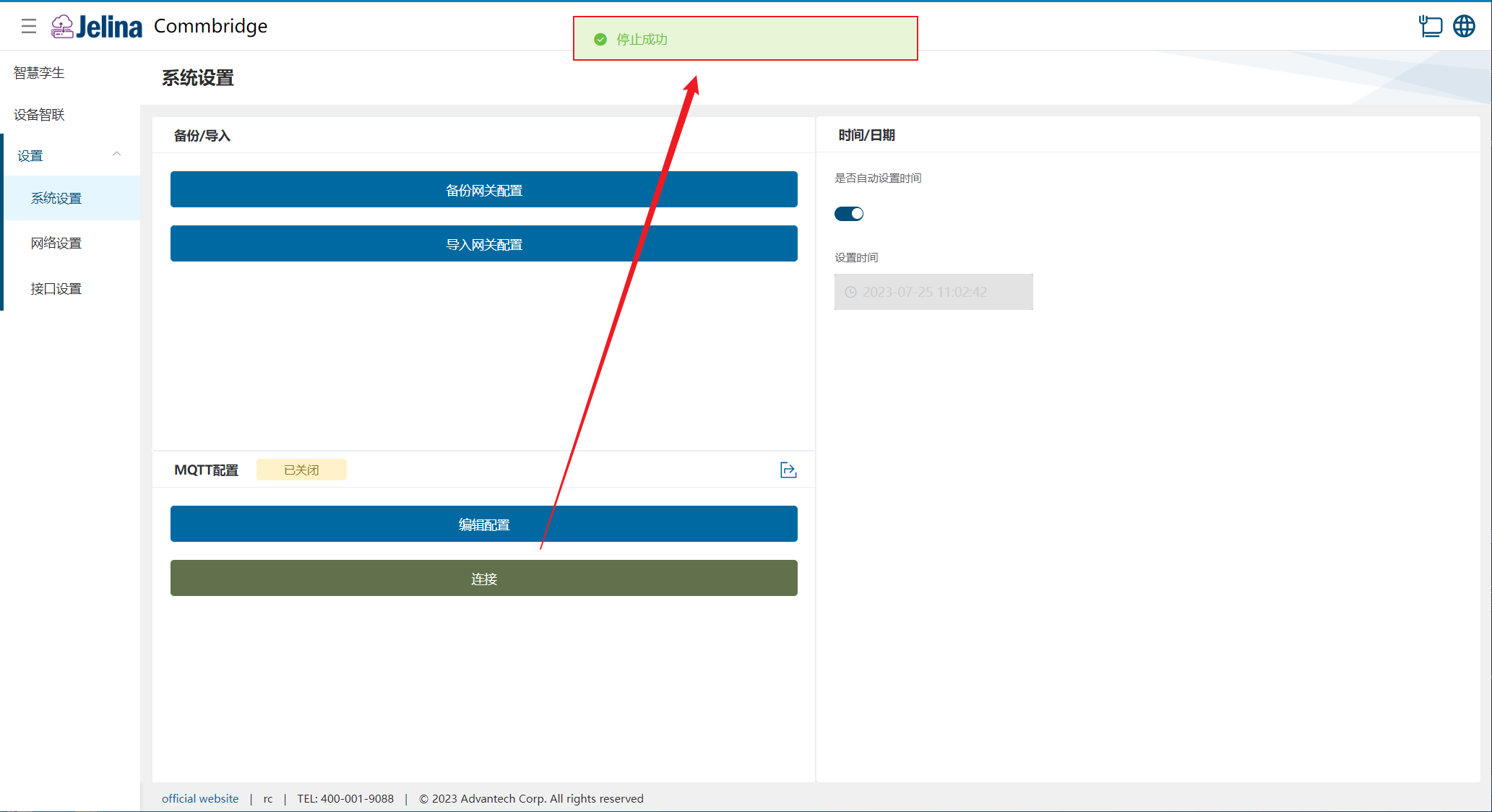
2. Network settings
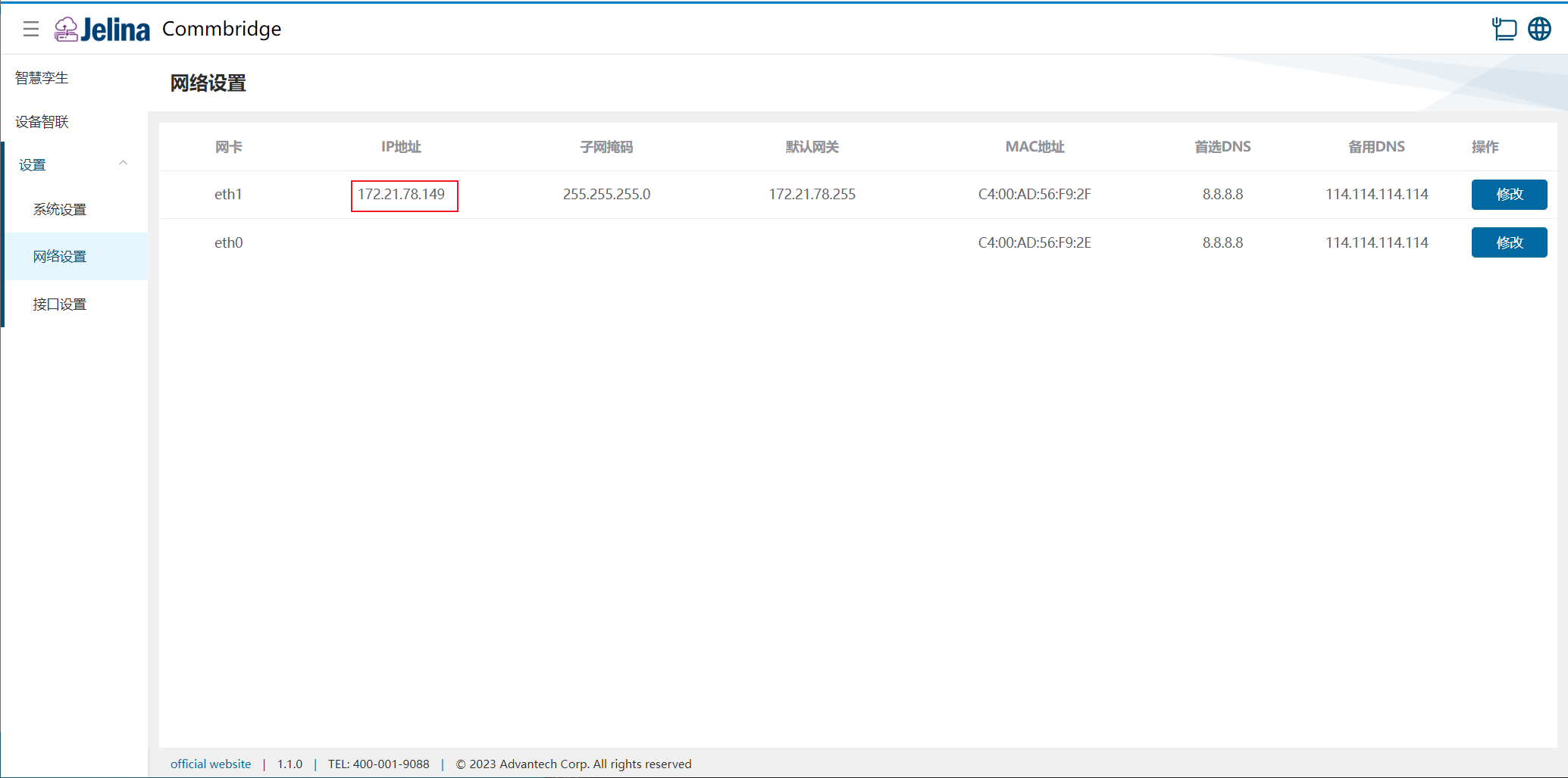
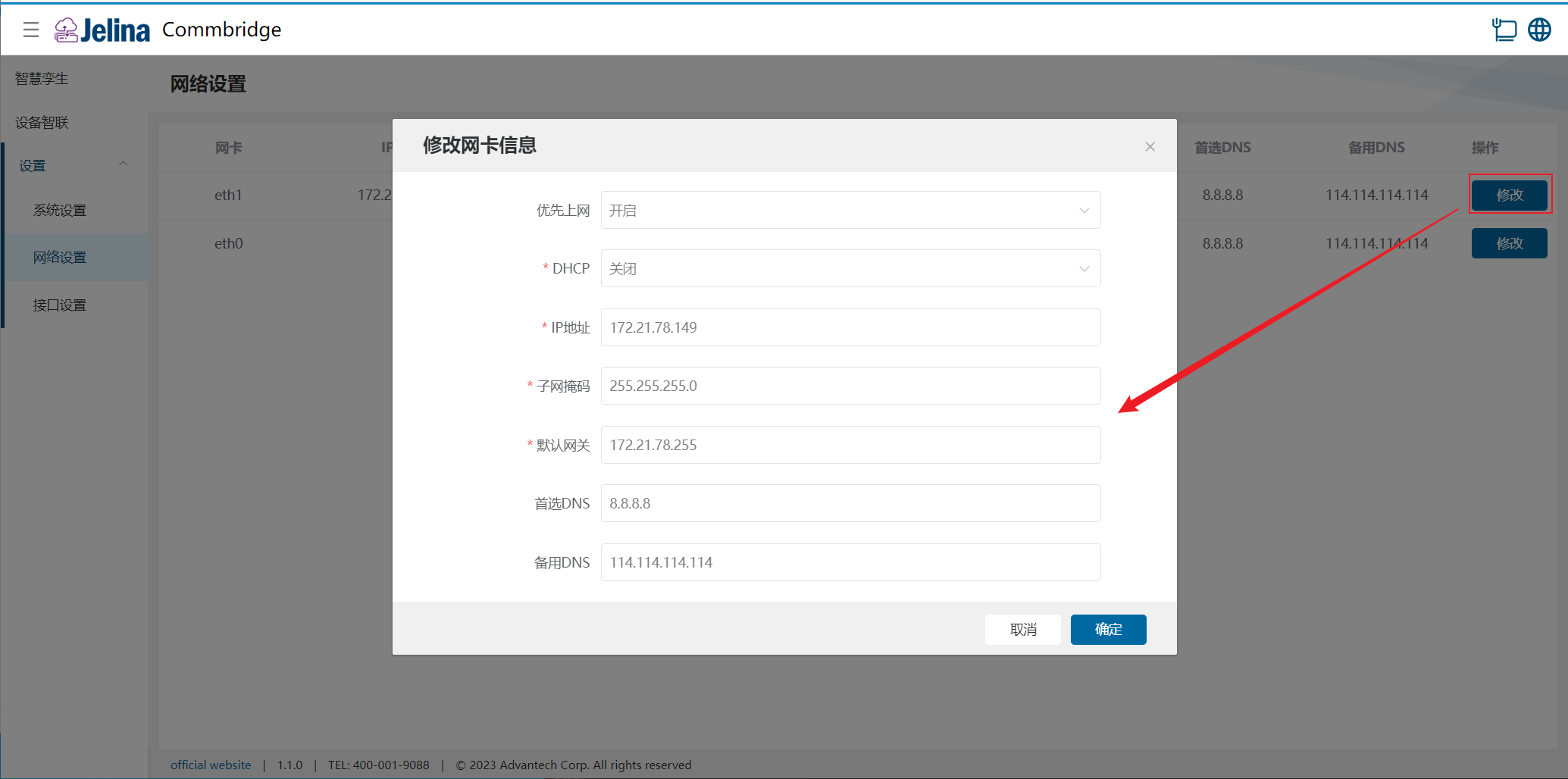
Section titled “2. Network settings”Open Network → Network settings to view interfaces, IP addresses, subnet masks, default gateways, MAC addresses, preferred DNS, and alternate DNS.
On R3220 devices, the Linux version of CommBridge sets eth0 to 192.168.0.1 during installation. With multiple interfaces, specify the Internet uplink by enabling Preferred Internet access when editing the chosen interface.
- Edit network interfaces
Select Edit. DHCP, IP address, subnet mask, and default gateway are required fields.
3. Interface settings
Section titled “3. Interface settings”Serial and Ethernet interface changes require saving and restarting the device.
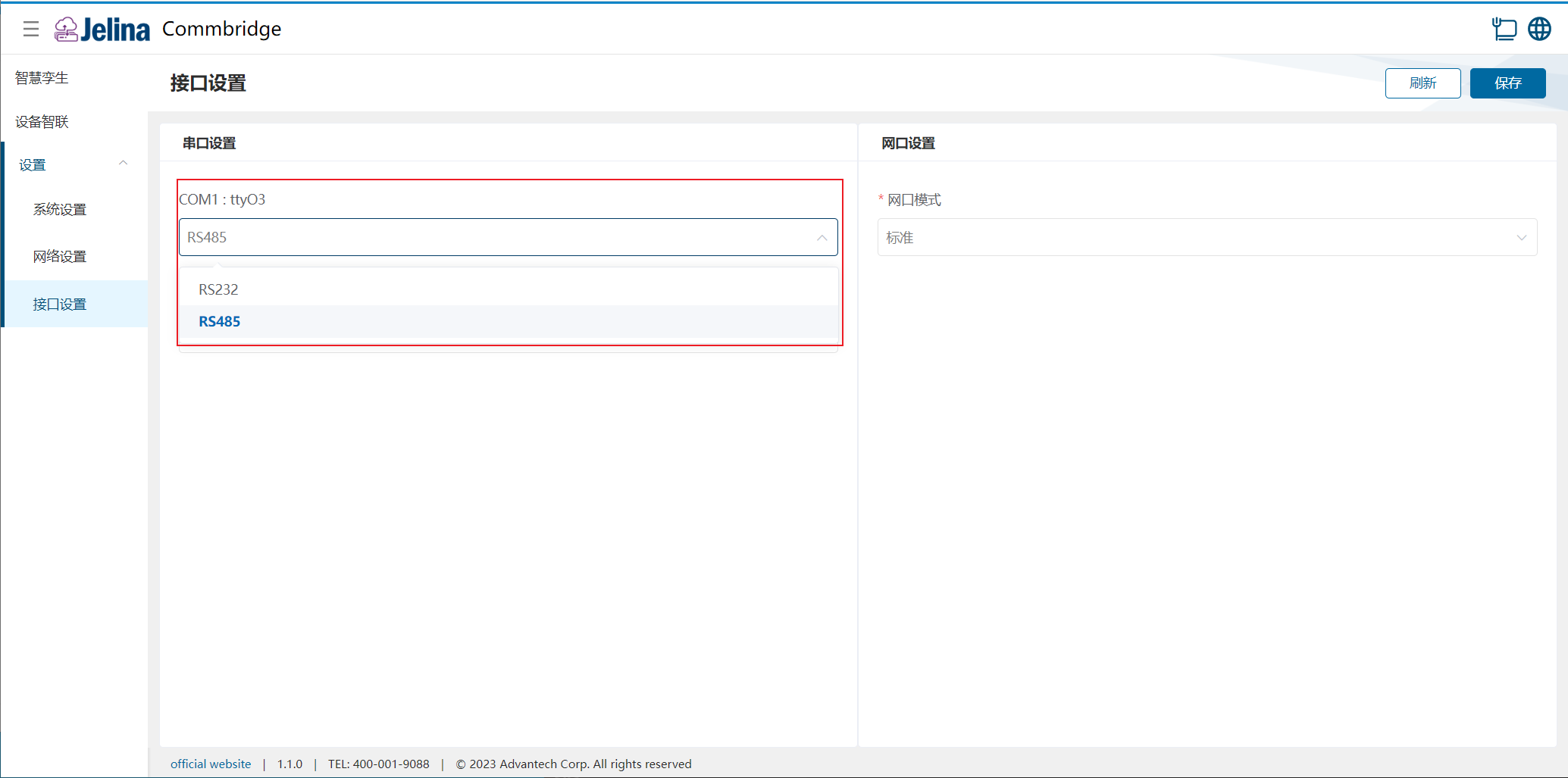
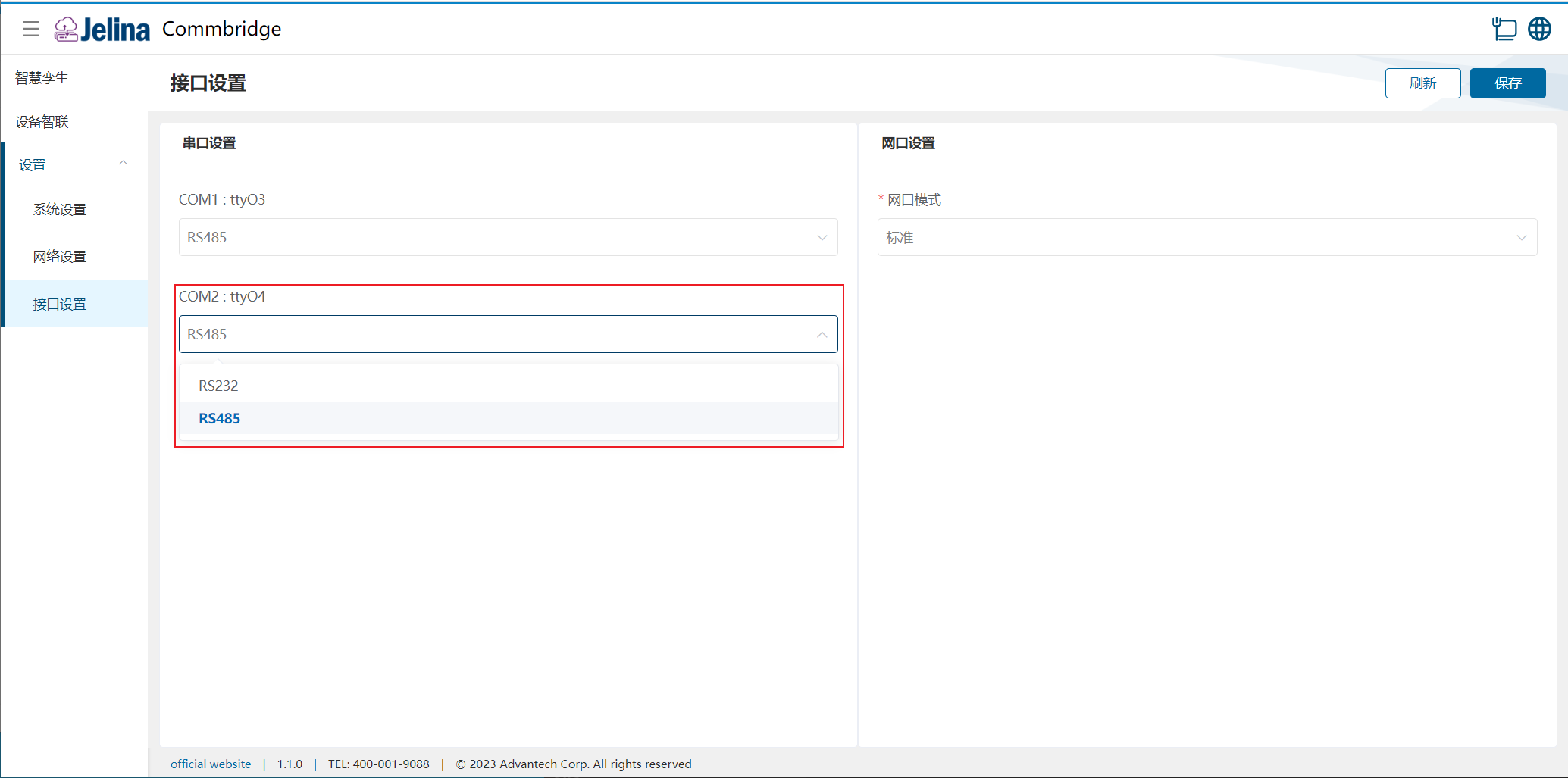
(1) Serial settings: Some devices share interfaces between RS-485 and RS-232; change the mode here.
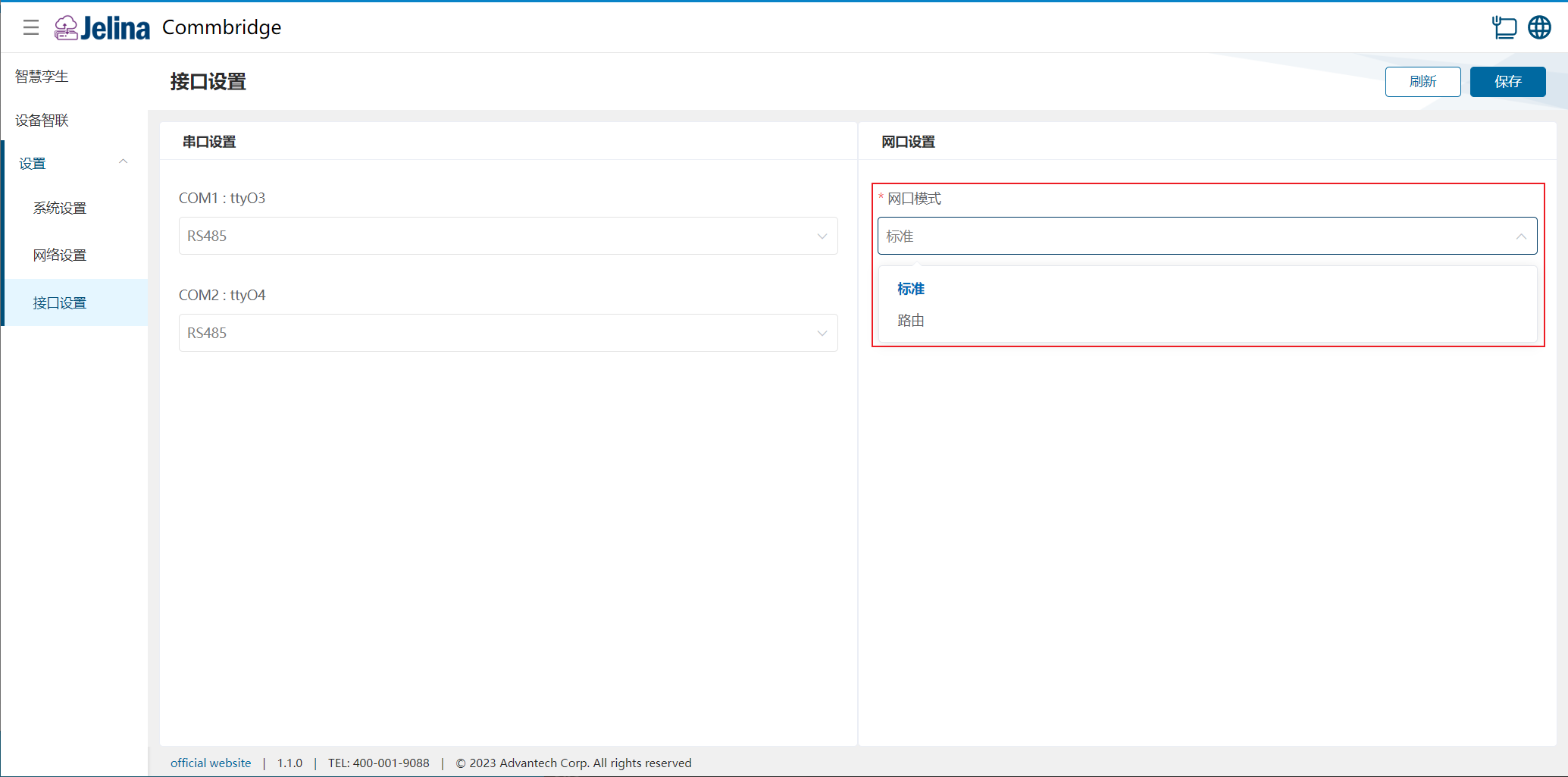
(2) Ethernet settings: Some devices support independent IP and routing modes; change them here.
Refer to each hardware manual for interface definitions.
4. Serial settings
Section titled “4. Serial settings”Available serial types depend on the device. These screenshots show R3220.
(1) COM1
Open Settings → Interface configuration and change the COM1 mode under serial settings.
(2) COM2
Open Settings → Interface configuration and change the COM2 mode.
Ethernet settings
Section titled “Ethernet settings”Open Settings → Interface configuration and change the network interface mode. Usually only standard mode is available and is the default. If routing mode is also available, switch between them. Routing mode requires access through the first Ethernet port; connect the cable to that port and verify access to eth0’s IP address first. Refer to chapter 3, Access.
(1) Routing mode: Both ports share one IP address.
(2) Standard mode: Each port has its own IP address.
- Save interface settings and restart to apply them
All services disconnect during restart.
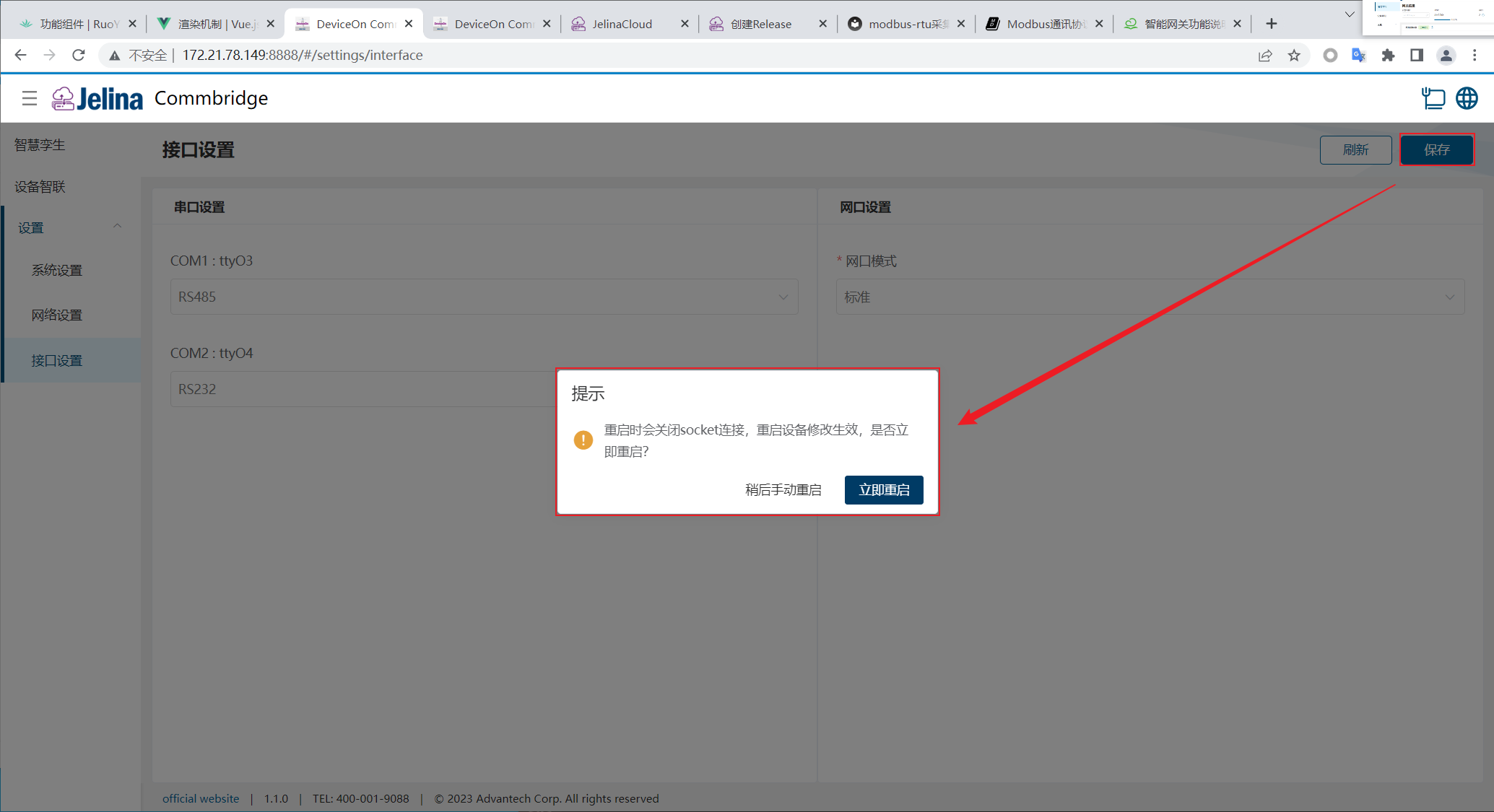
(1) Without refreshing, wait for services to restart successfully.
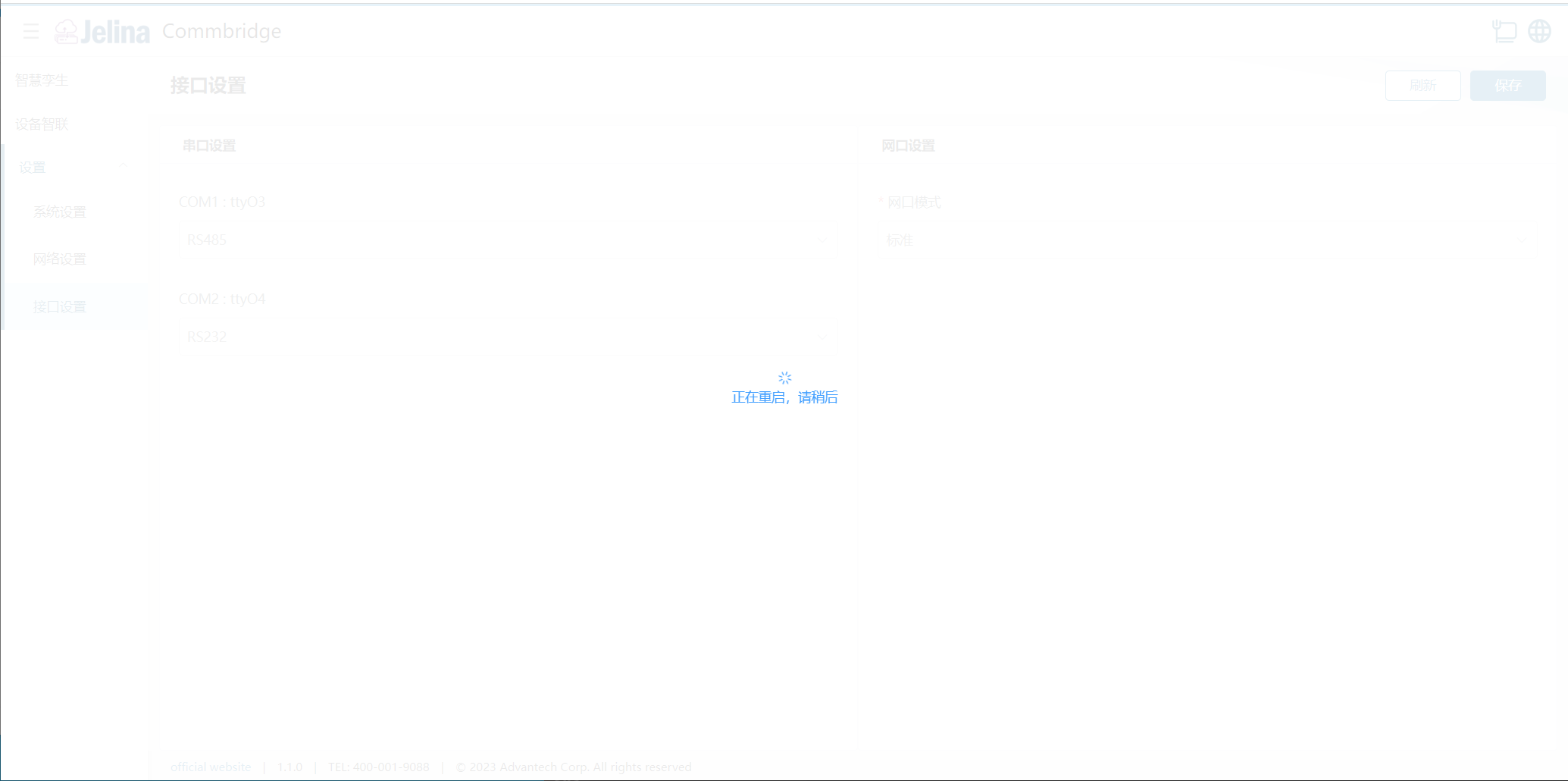
(2) If you refresh, the page redirects automatically to Digital Twin after restart completes.
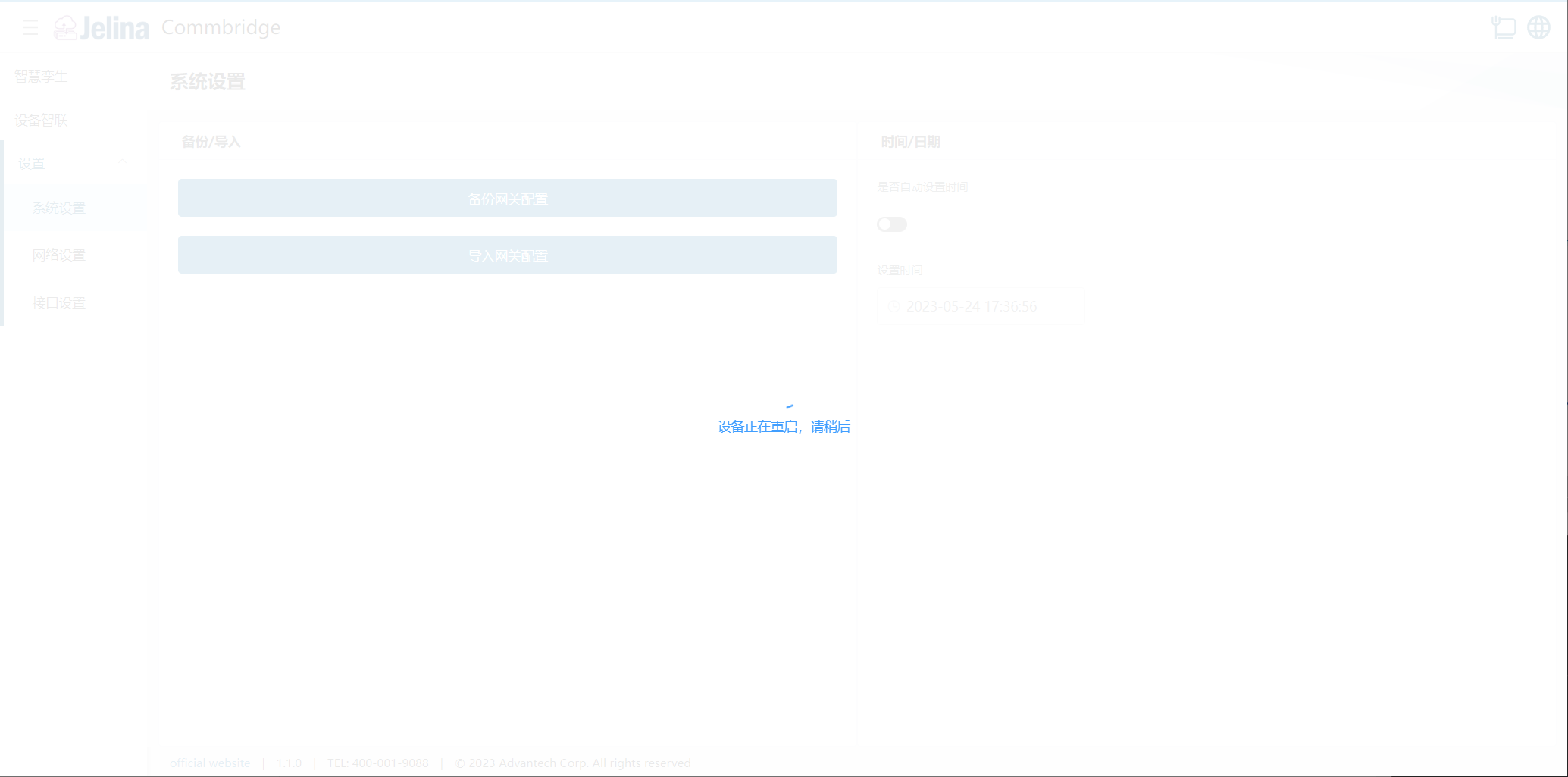
- Refresh interface settings data
Language settings
Section titled “Language settings”CommBridge currently supports Simplified Chinese, Traditional Chinese, and English. Switch under System → Language.
