
Access
CommBridge provides a Web-UI. Open the address of the device running CommBridge in a browser; Chrome is recommended.
1. Access by local IP
Section titled “1. Access by local IP”(1) Sign in to JelinaCloud.
(2) Open the target fleet’s device list.
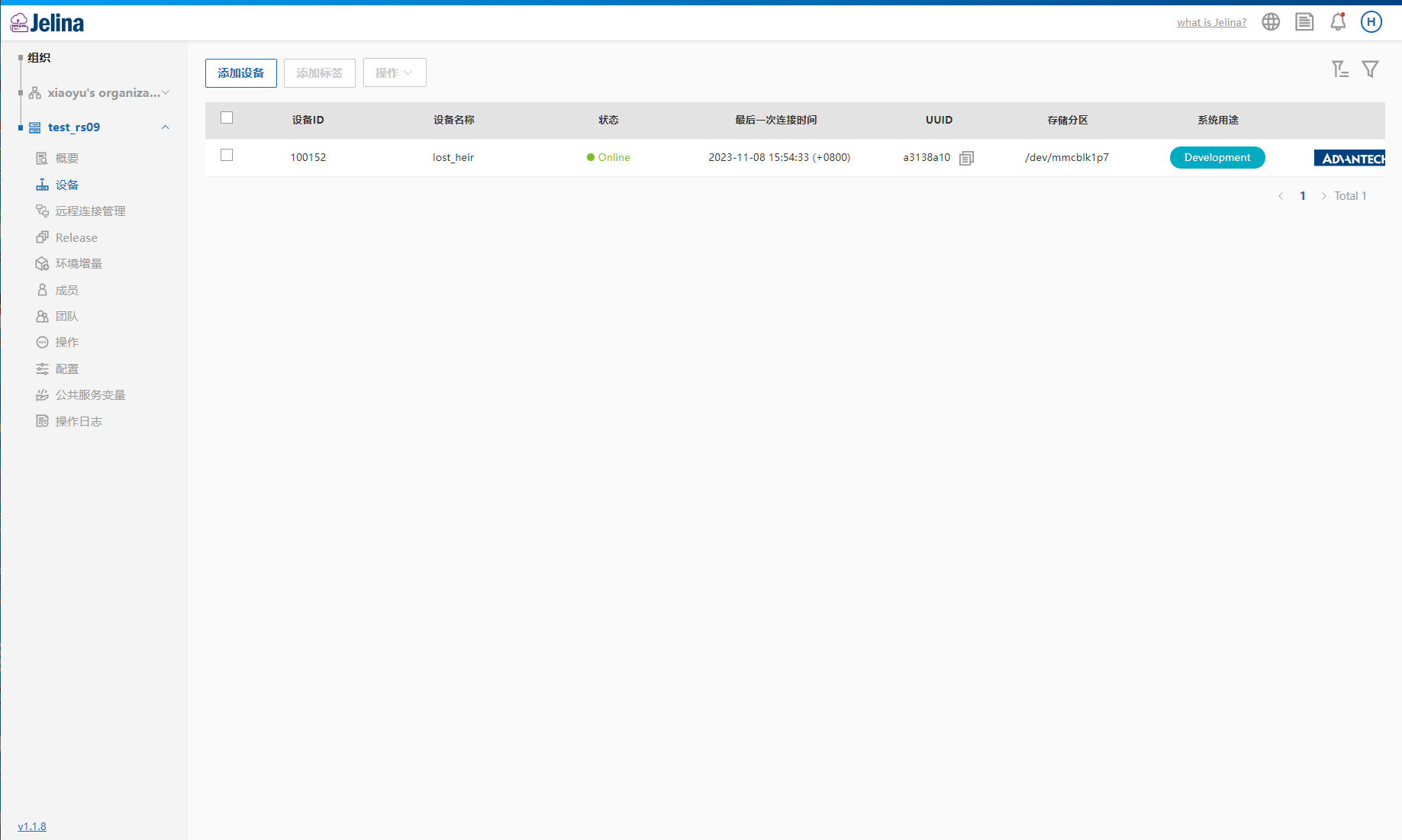
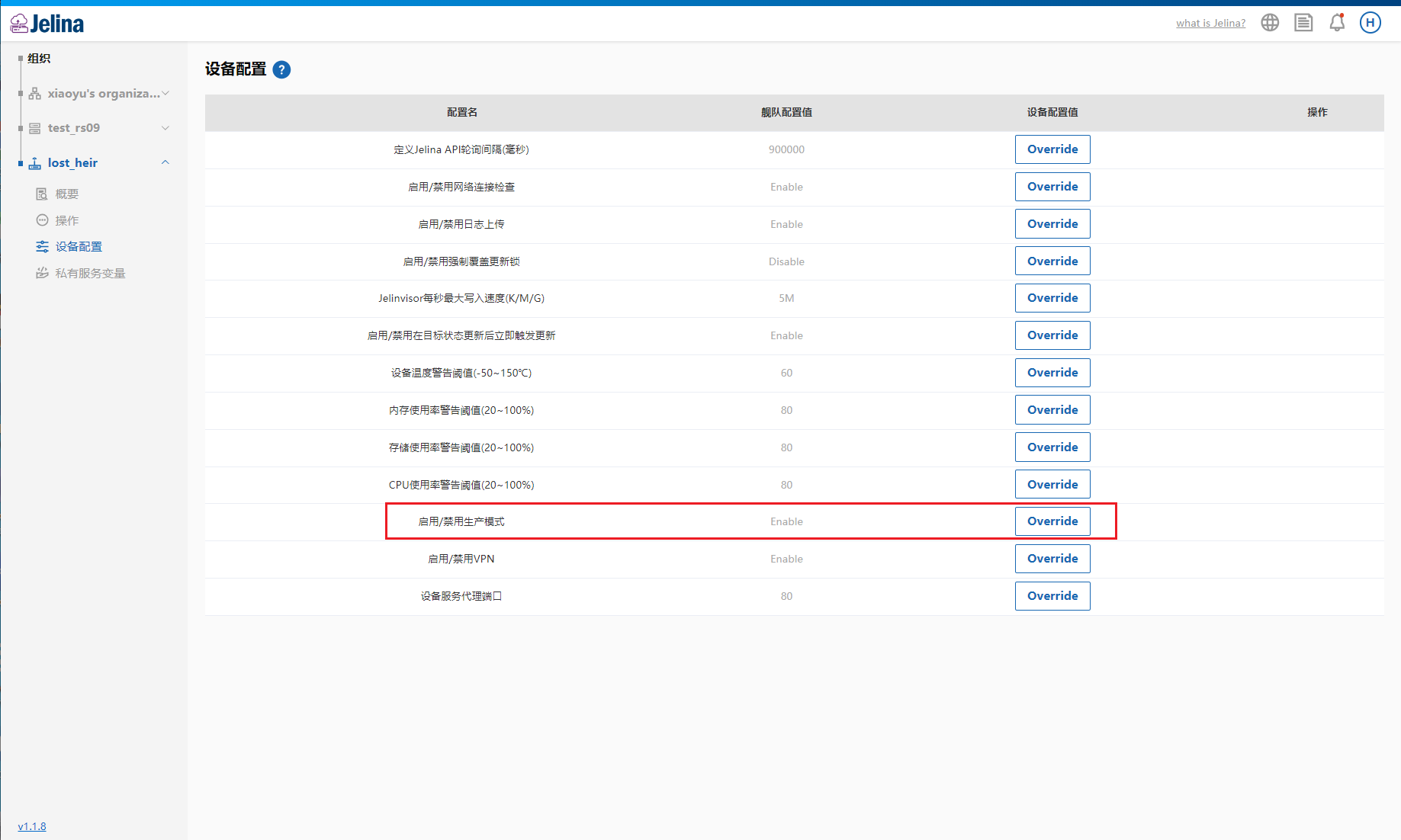
(3) Open Device configuration in device details and enable production mode.
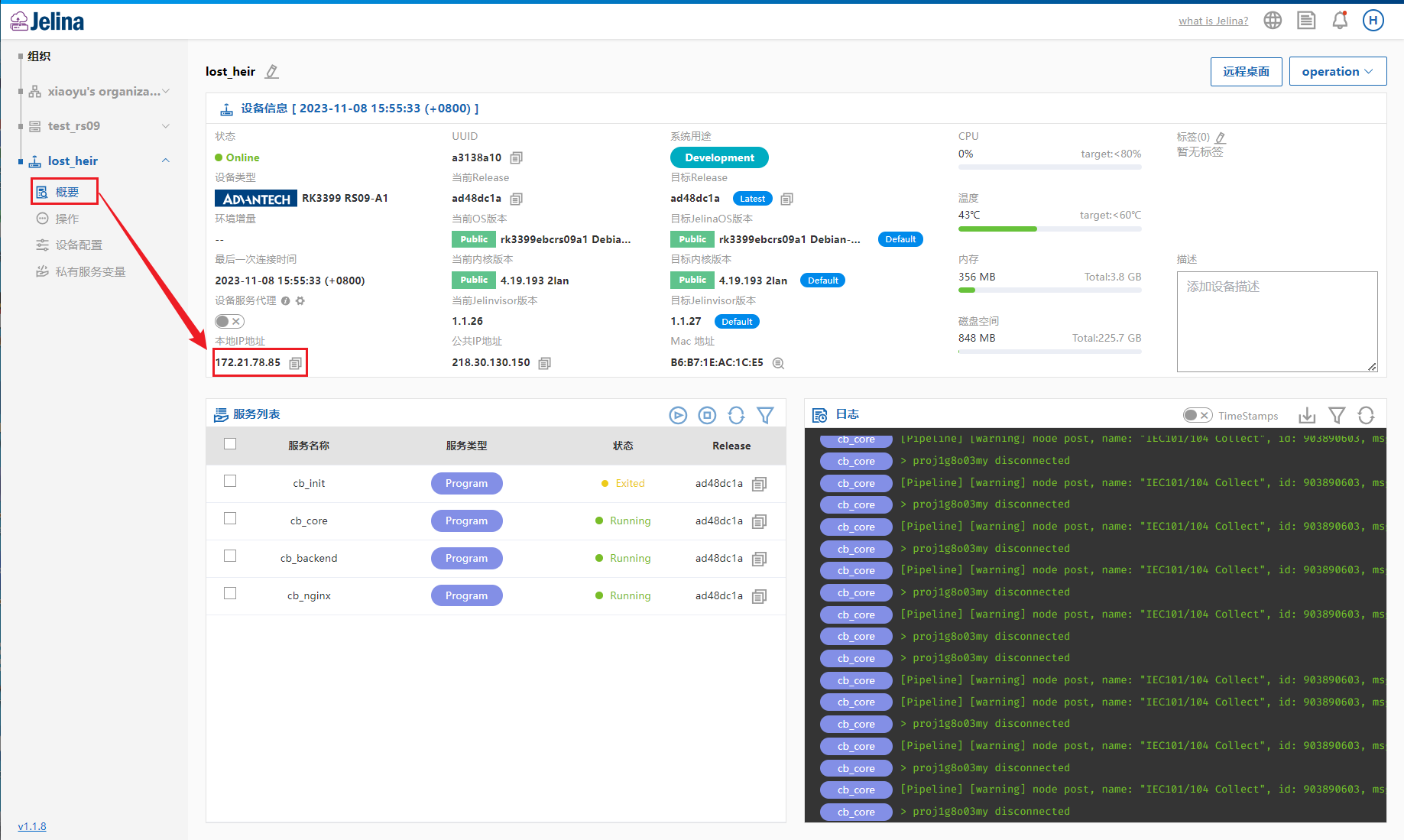
(4) Open the device overview, copy its local IP address, and enter ip in the browser address bar.
2. Access through the remote service proxy
Section titled “2. Access through the remote service proxy”(1) Sign in to JelinaCloud.
(2) Open the target fleet’s device list.
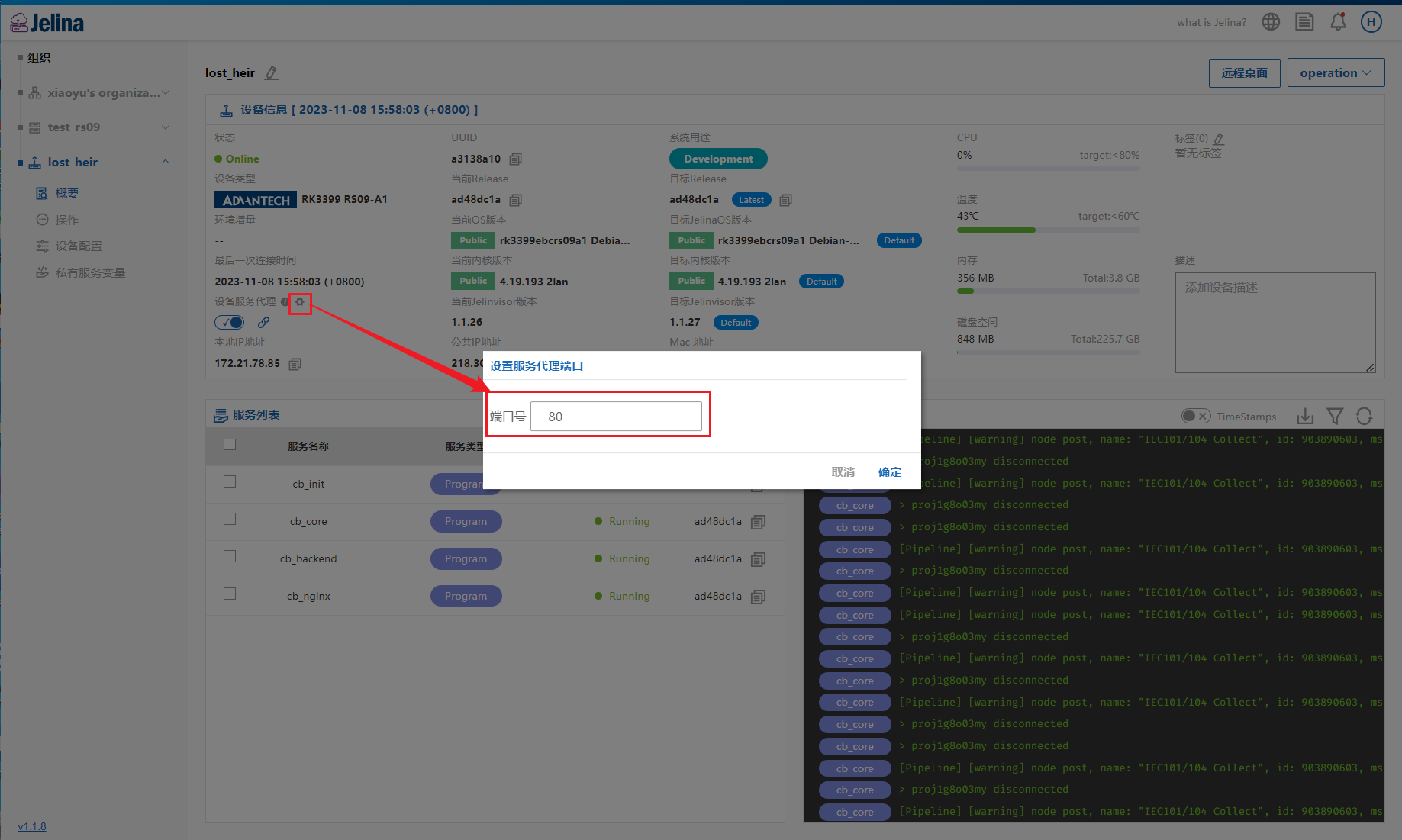
(3) Open device details, enable the device service proxy, and follow its link.
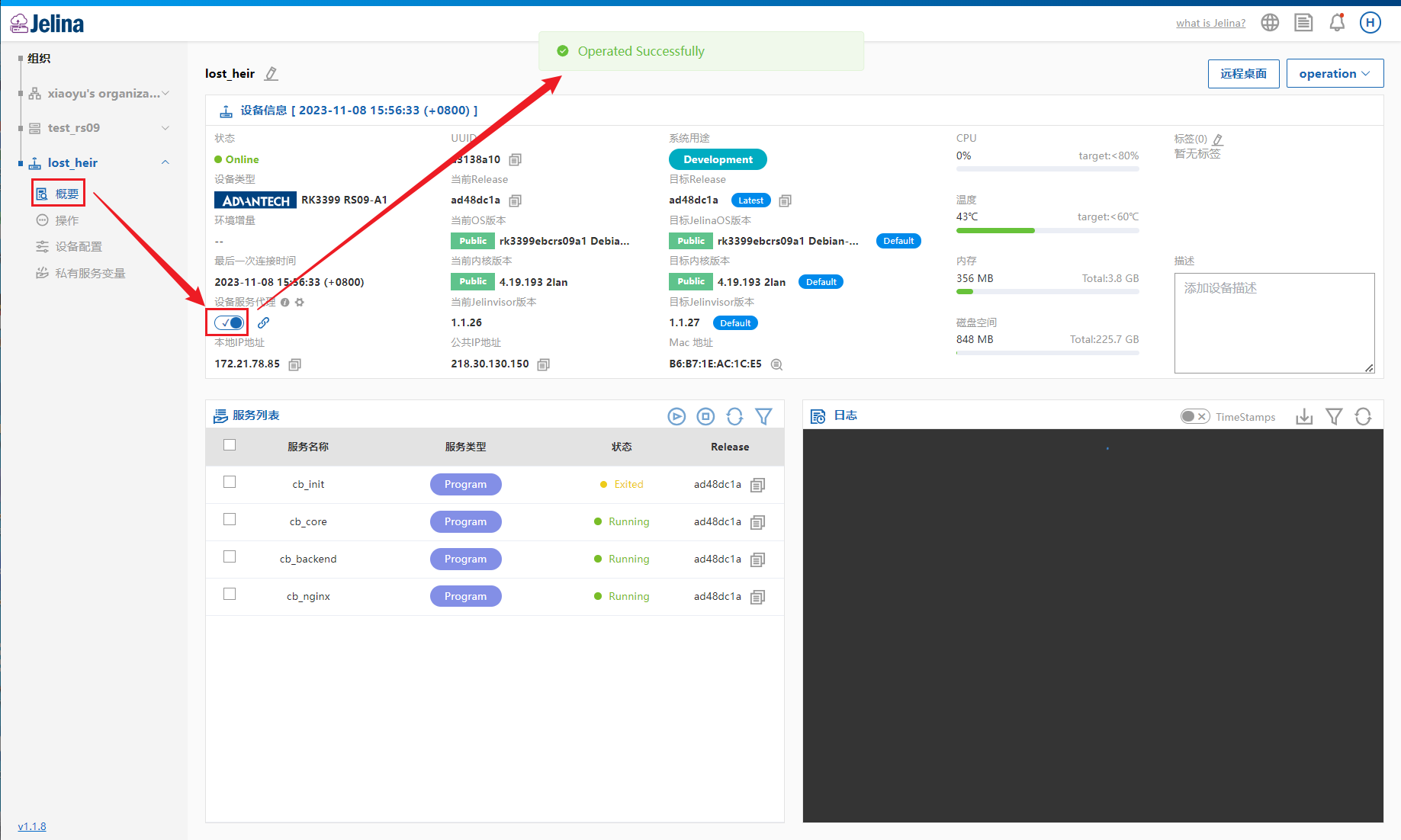
Note: The default proxy port is 80.
3. Access over an Ethernet cable
Section titled “3. Access over an Ethernet cable”Put the
PCand the device running CommBridge on the same subnet, changing both IP addresses to access the interface in a browser. Connect them with an Ethernet cable before changing addresses. This method is not recommended for devices with one Ethernet port.
Change the PC address
Section titled “Change the PC address”(1) Connect the PC directly to the device’s eth0 using Ethernet.
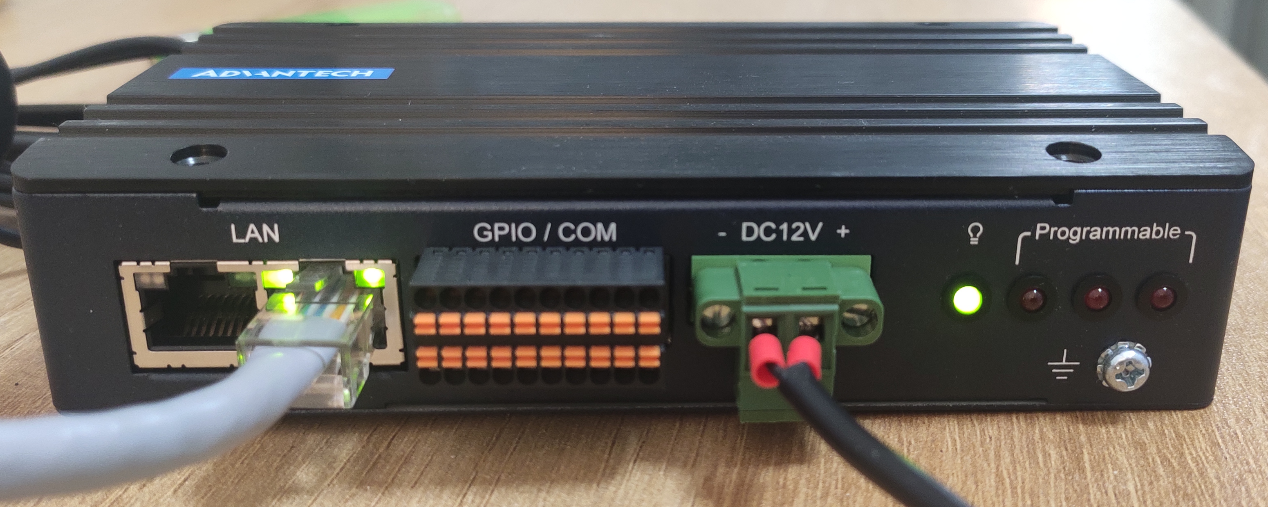
The hardware example is EPC-R3220. Consult your device’s hardware manual.
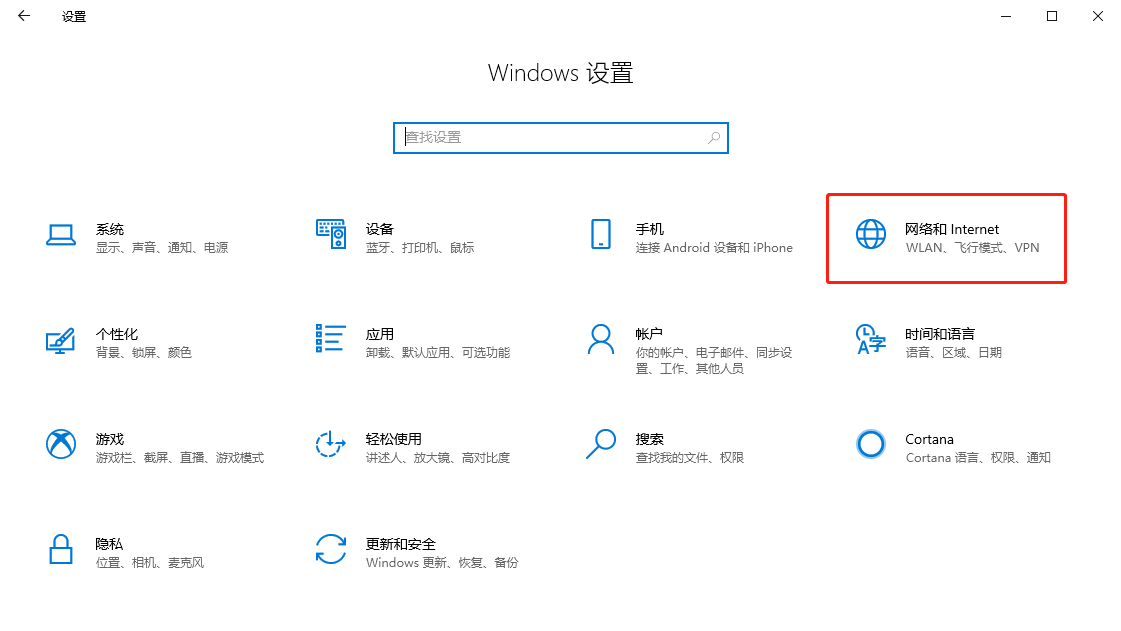
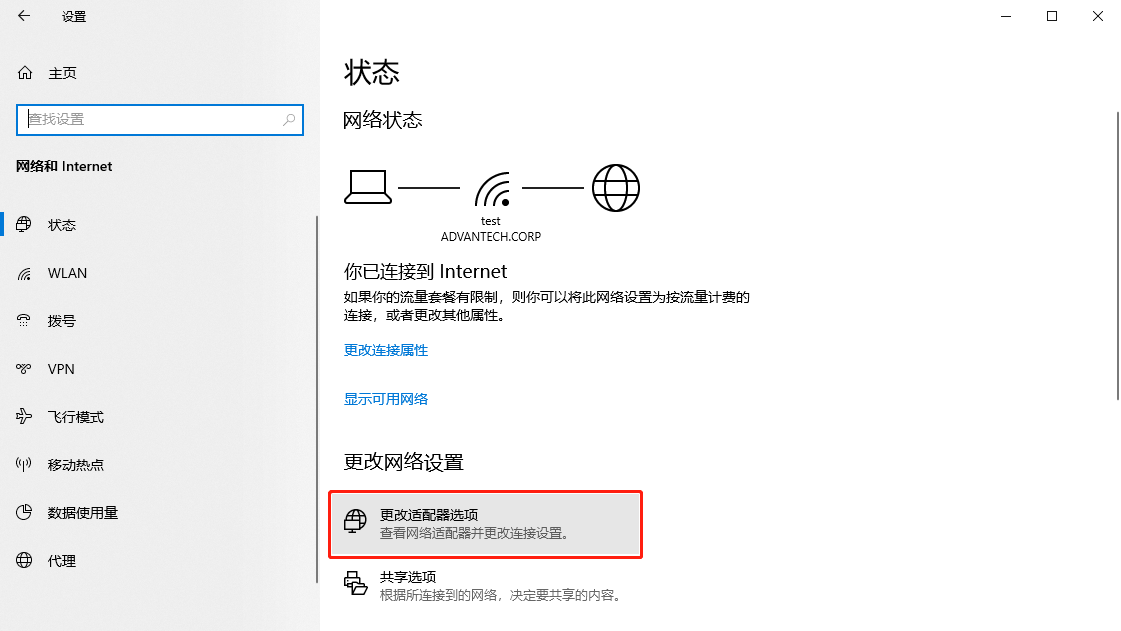
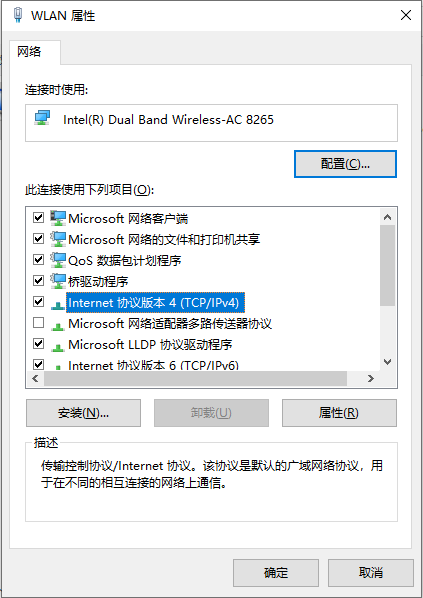
(2) Open PC Settings → Network & Internet → Change adapter options.
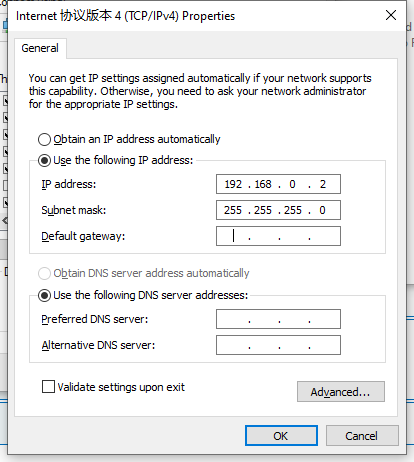
(3) Right-click the connection to the device, select Properties, double-click TCP/IPv4, and choose an IP within 192.168.0.2–192.168.0.253.
- IP address: 192.168.0.2
- Subnet mask: 255.255.255.0
- Default gateway: 192.168.0.3

Change the device address
Section titled “Change the device address”(1) Access CommBridge through its IP address or remote service proxy.
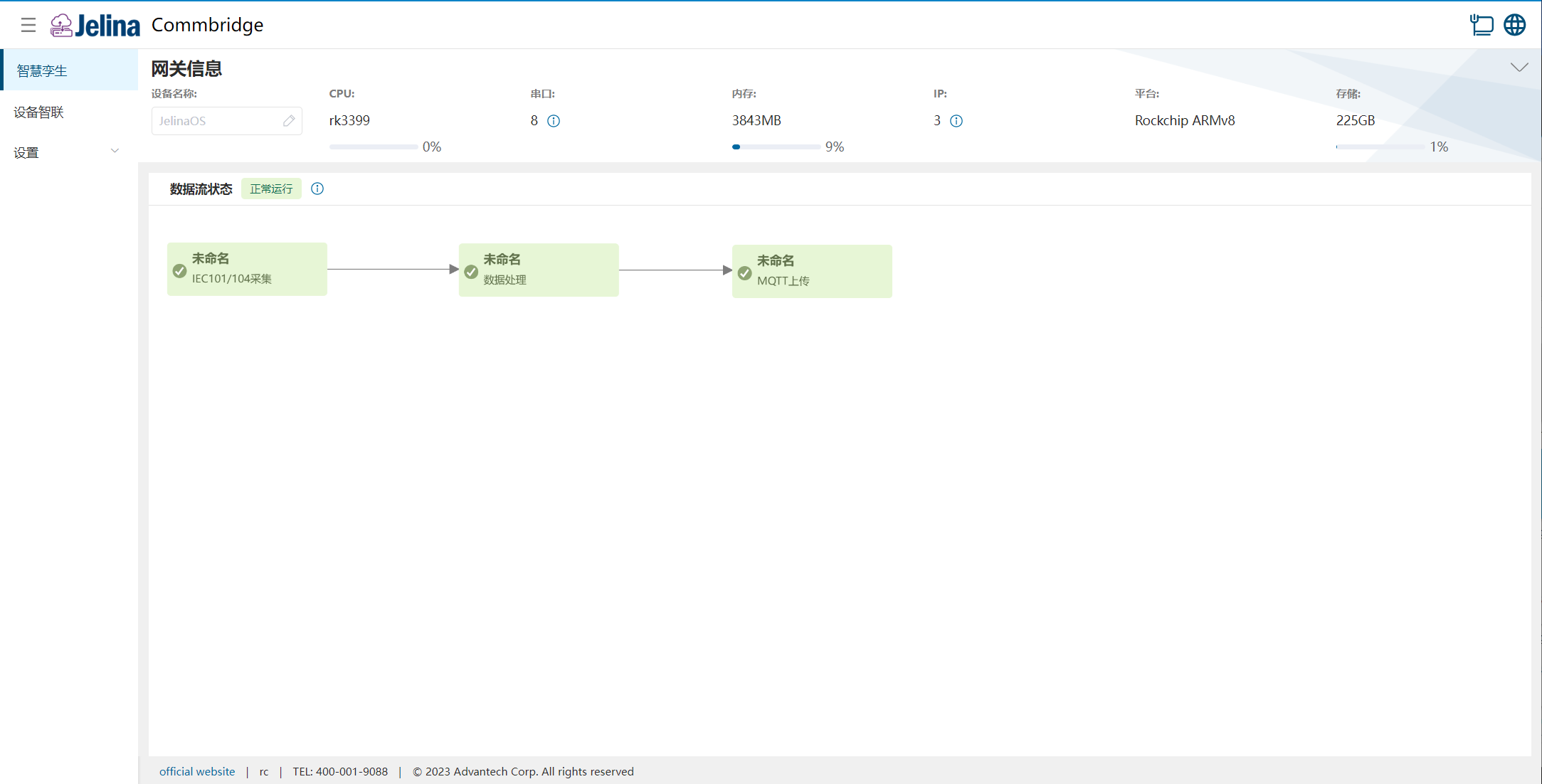
(2) Select Settings → Network settings.
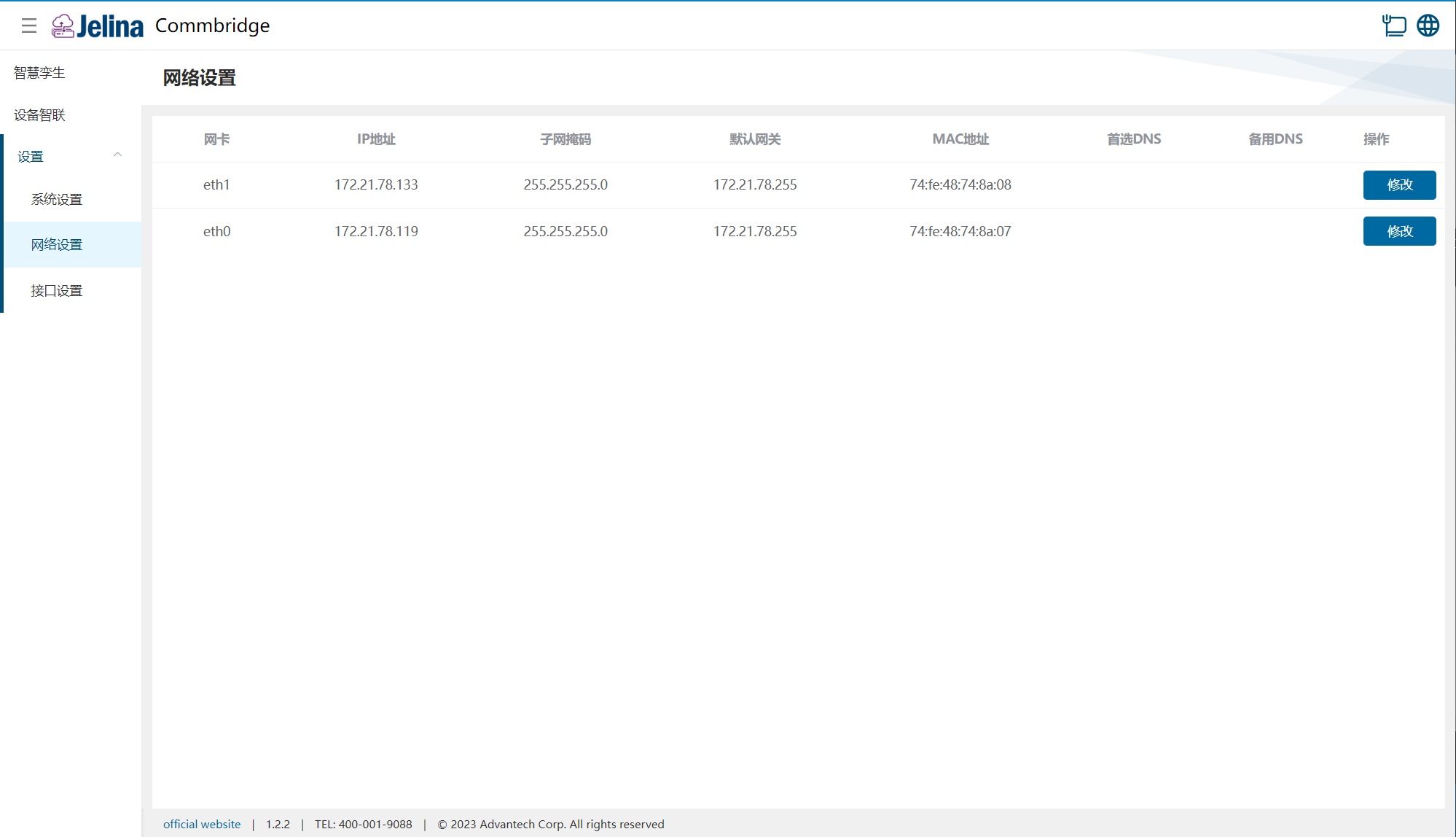
(3) Select Edit for eth1, update the interface settings, and select Save.
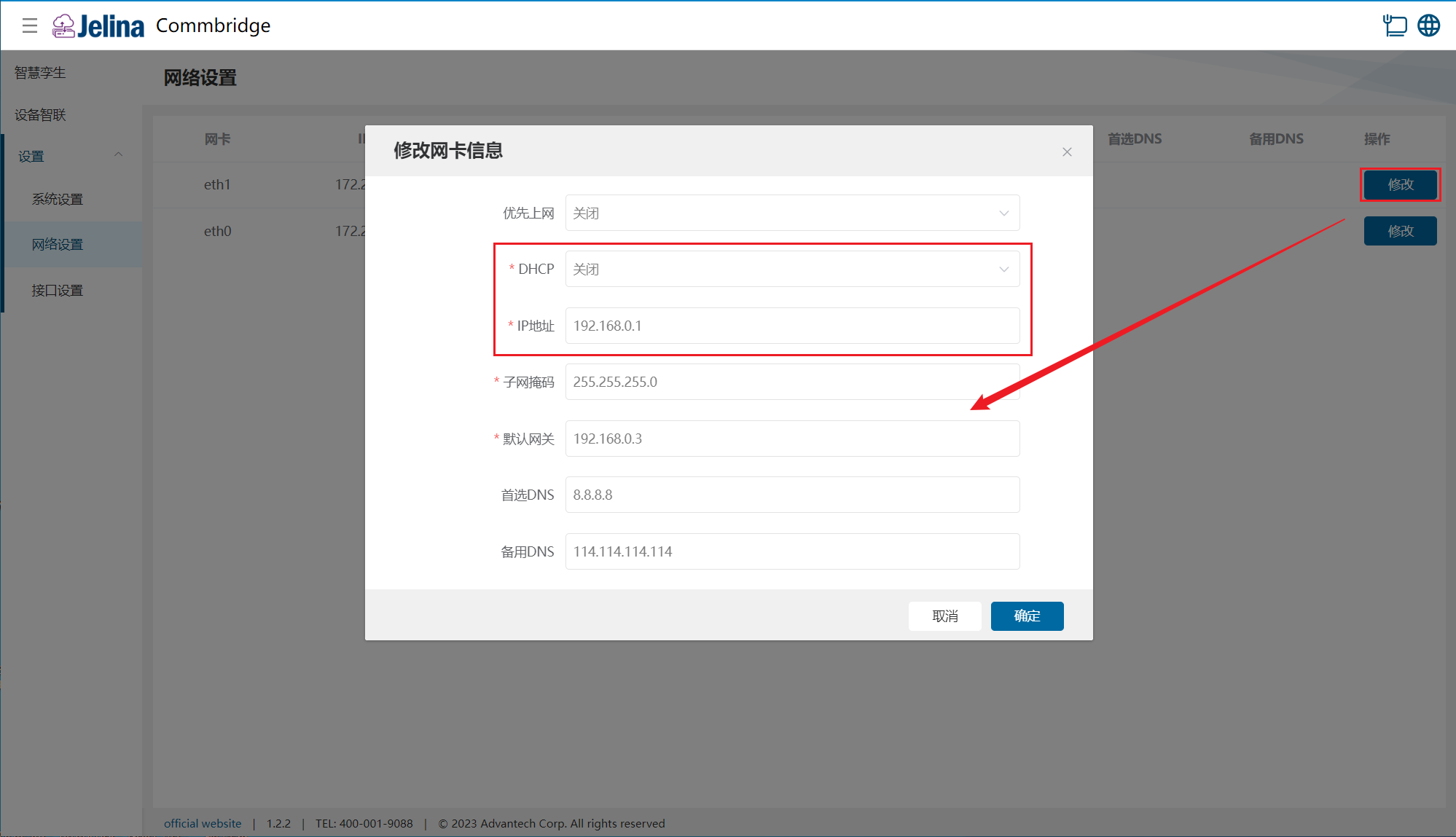
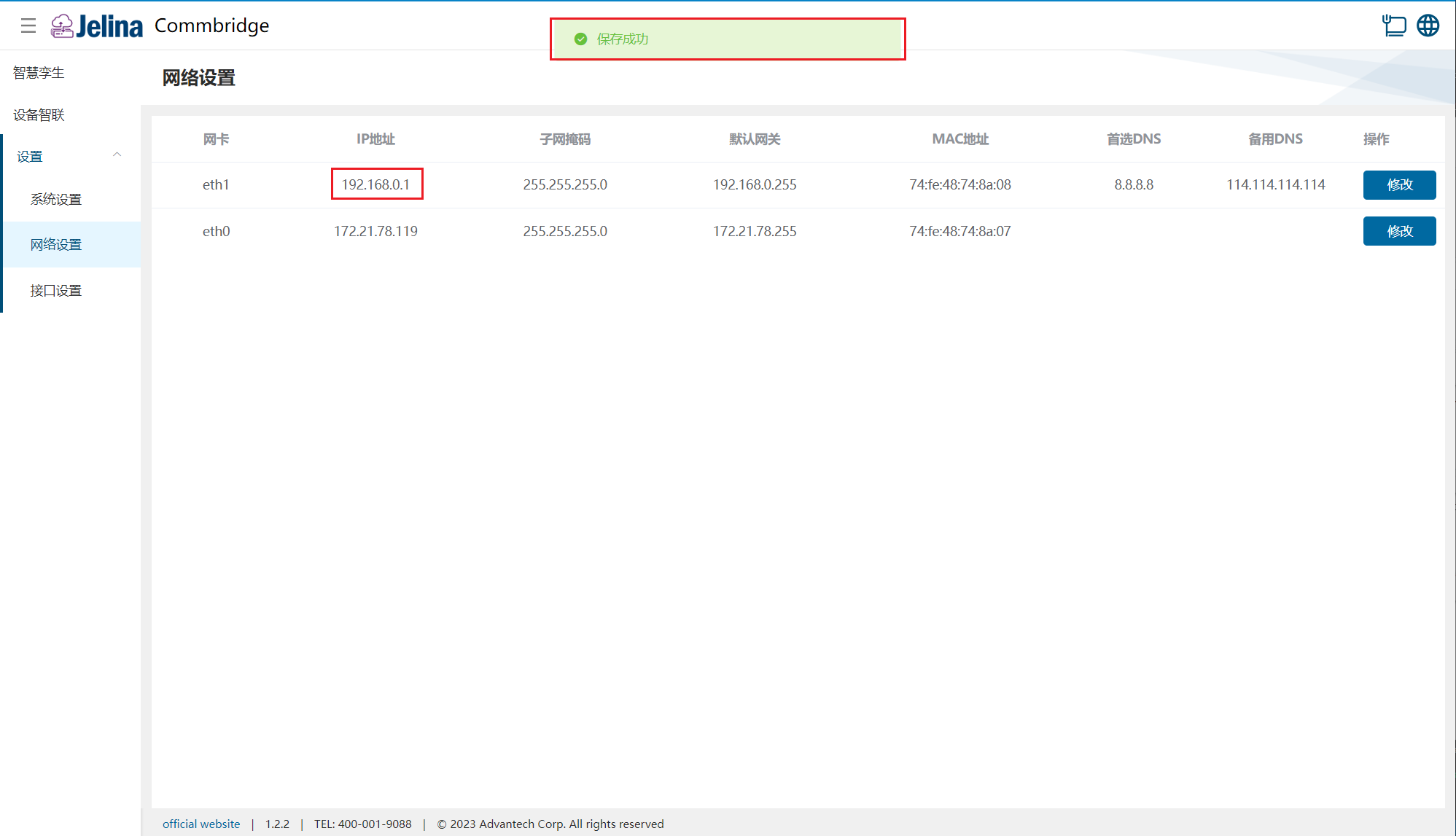
(4) Open Chrome on the PC and enter 192.168.0.1 to open the CommBridge management interface.
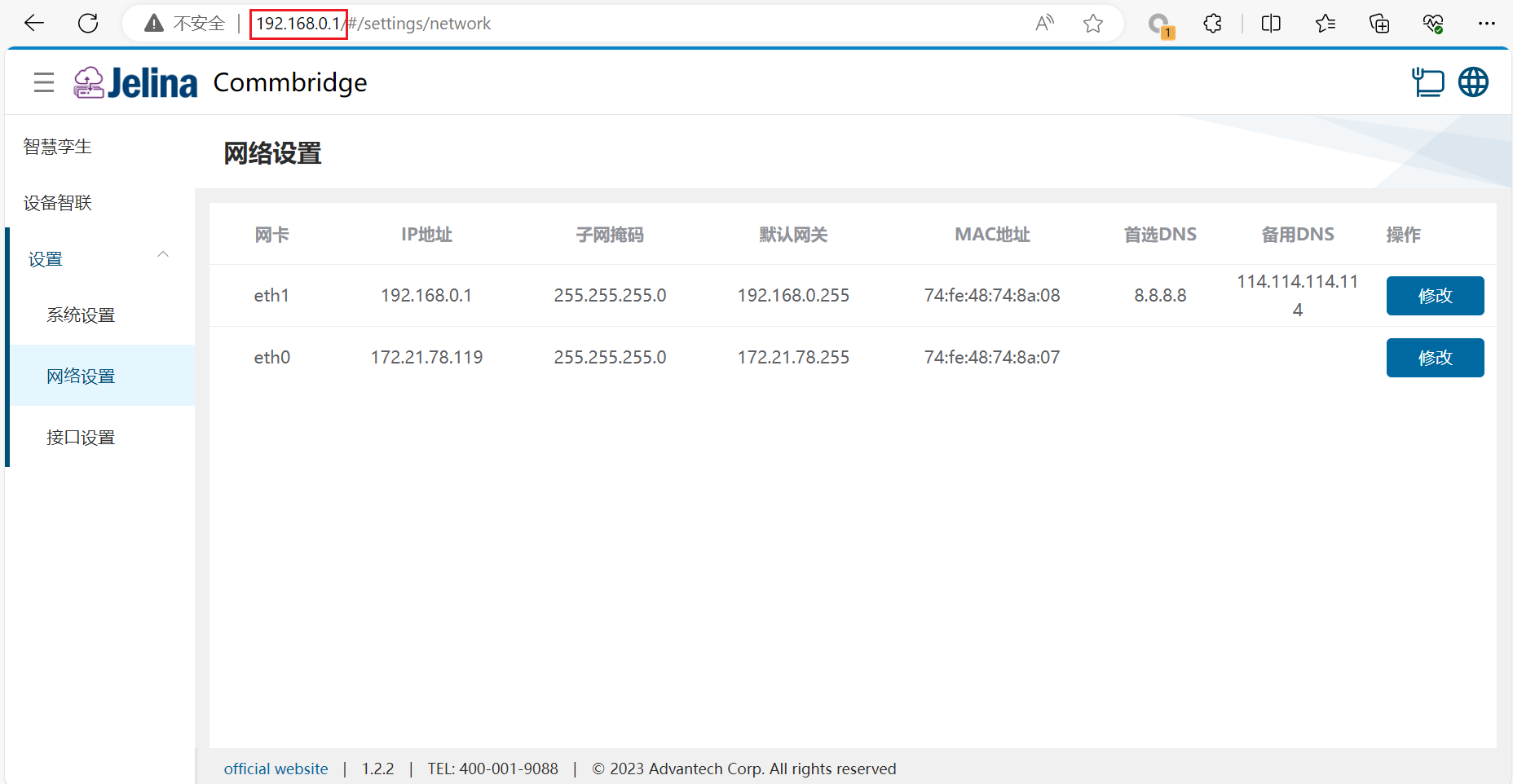
Note: The interface is designed for Chromium-based browsers at
100%zoom.